
On your personal smartphone
On your personal smartphone
Open the App Store (iPhone) or Google Play Store (Android)
Search for Microsoft Authenticator
Install the app
Ensure your phone has internet access
UCB Employees
On your personal smartphone
Open the App Store (iPhone) or Google Play Store (Android)
Search for Microsoft Authenticator
Install the app
Ensure your phone has internet access
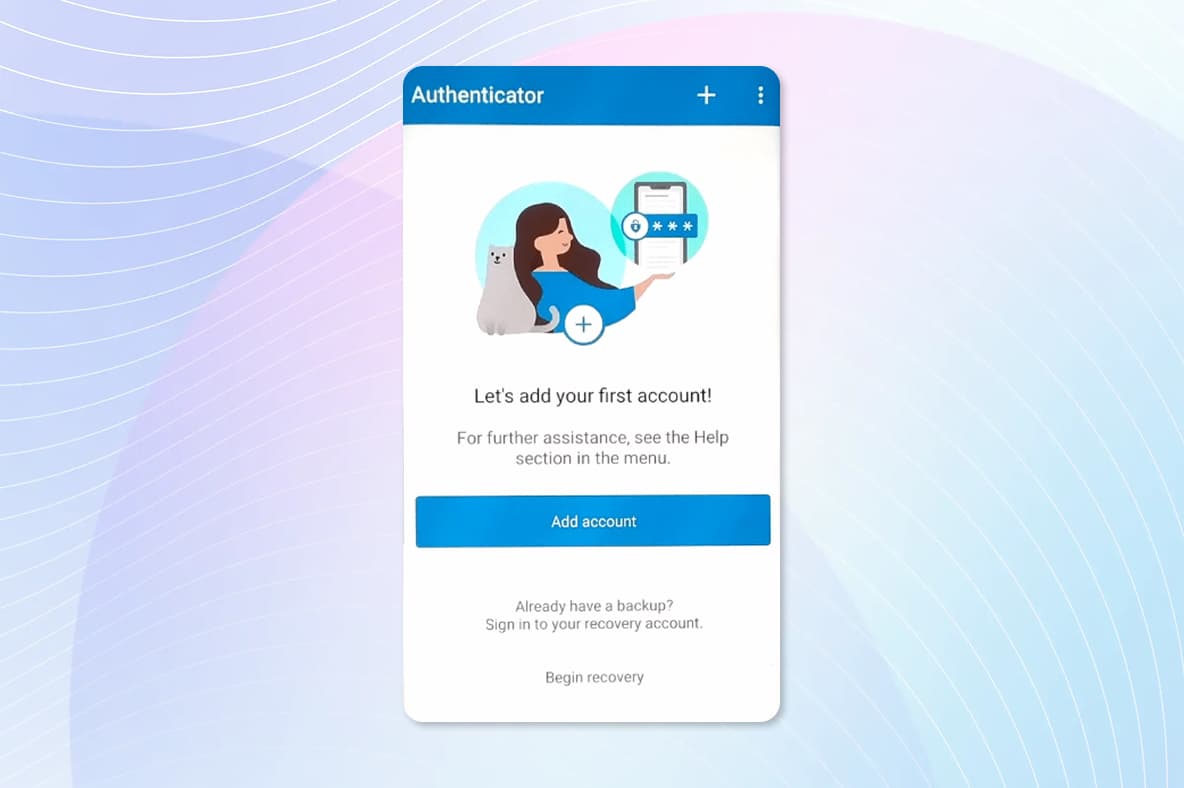
Step 2
Tap to add a work or school account.
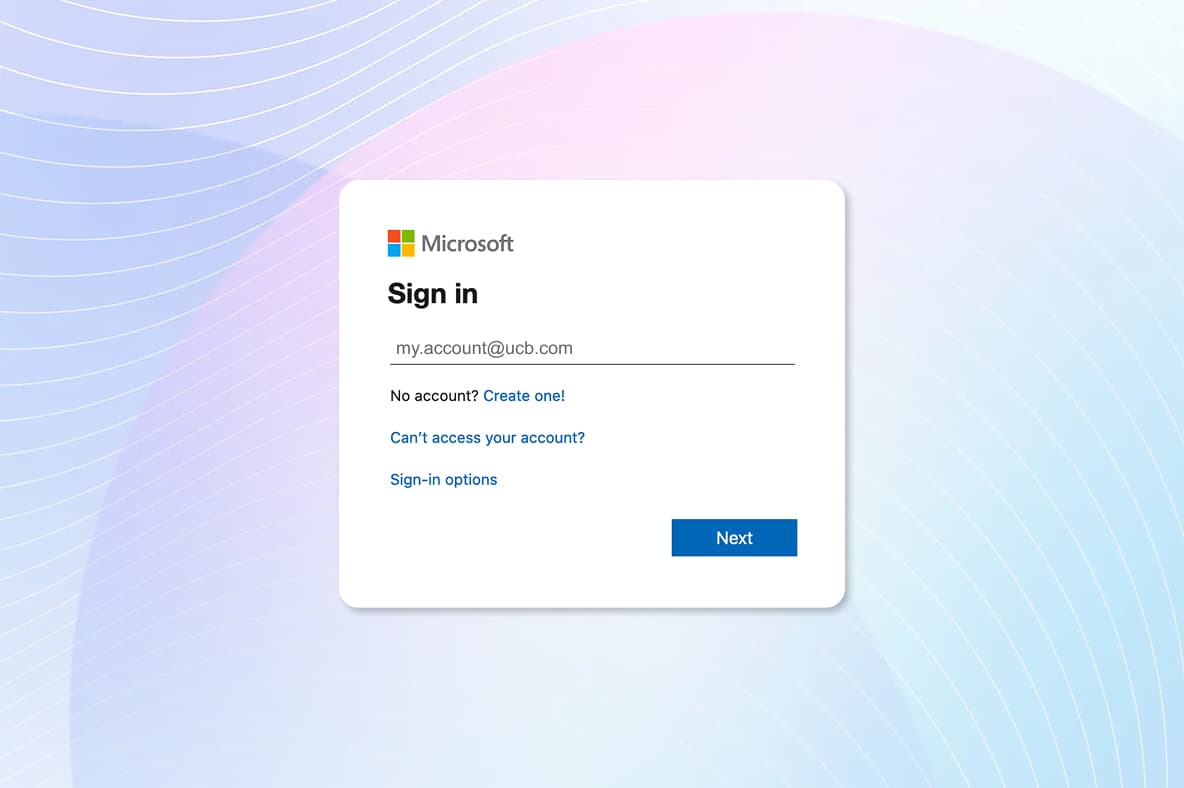
Step 3
Enter your UCB Email address and tap “Next”.
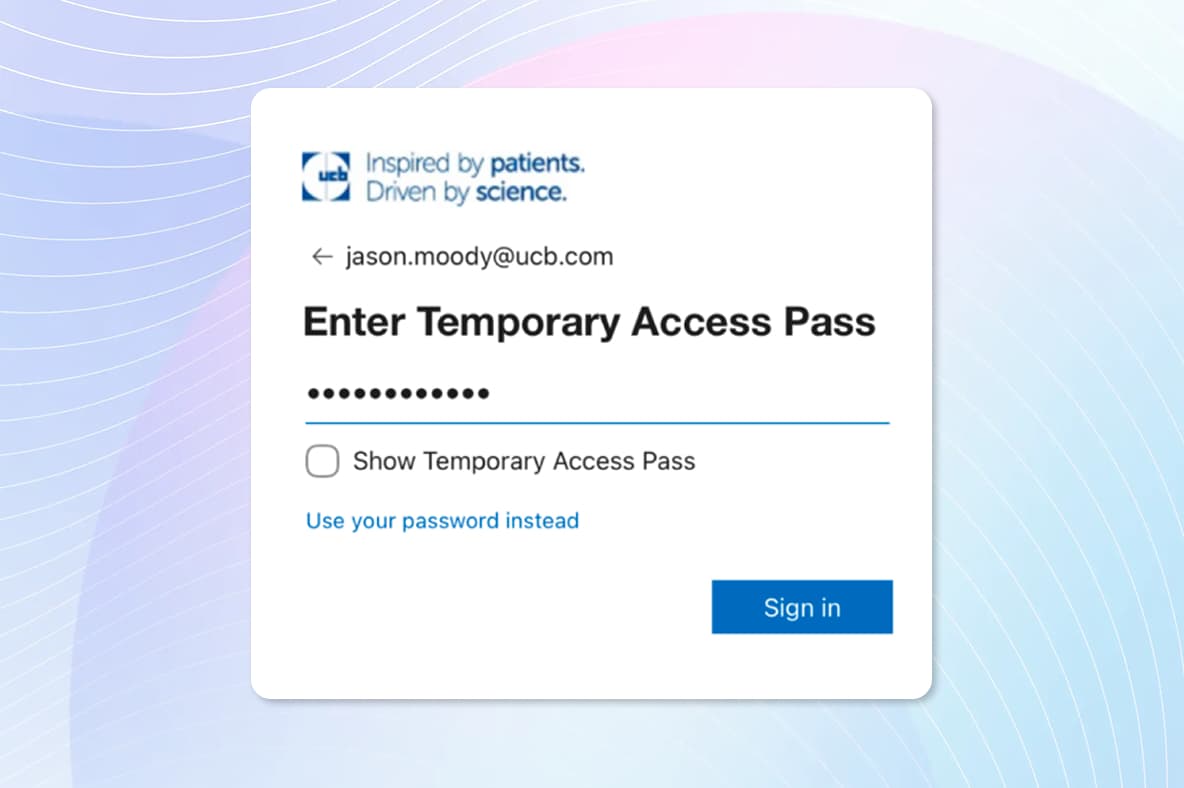
Step 4
Enter your Temporary Access Pass (TAP) and sign in.
Reminder: If you do not have your TAP or it's been more than two hours since your TAP was issued, please contact the MyIT Service desk to receive a new one.
Step 5
Tap continue to begin the registration process to secure your account.
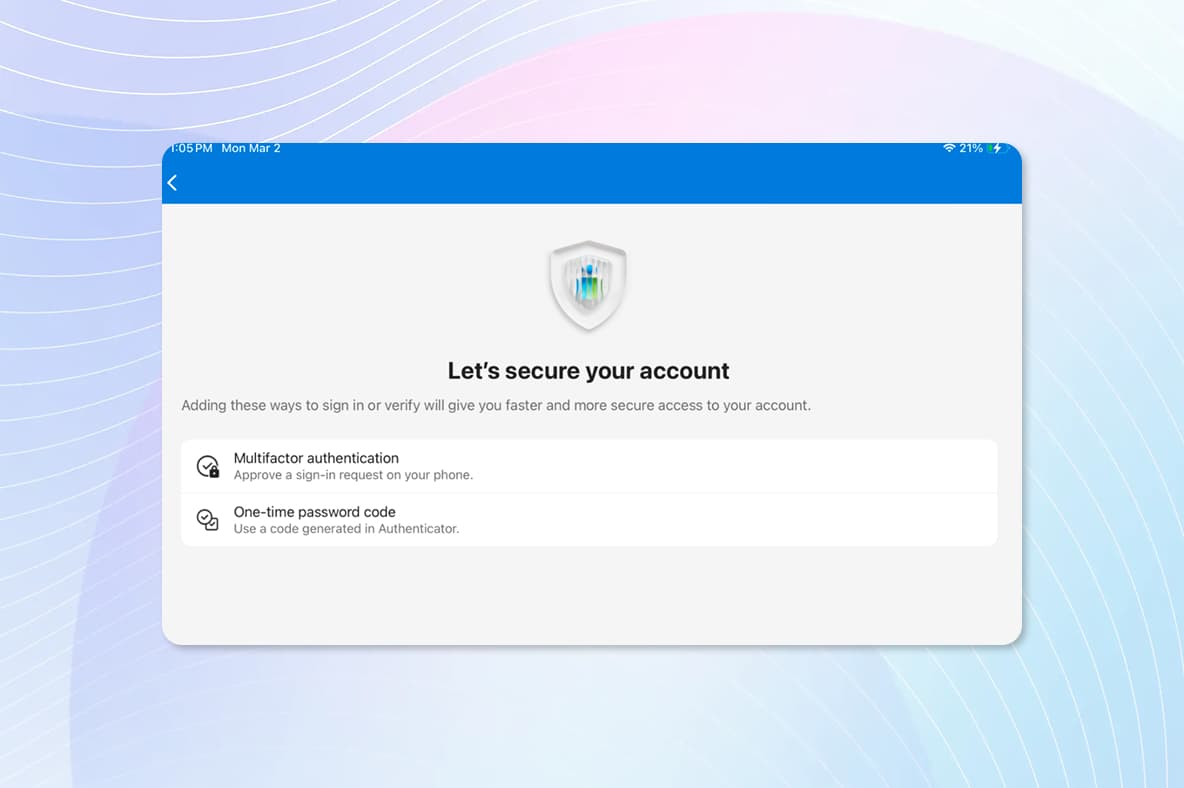
Step 6
Tap Done to complete the registration.
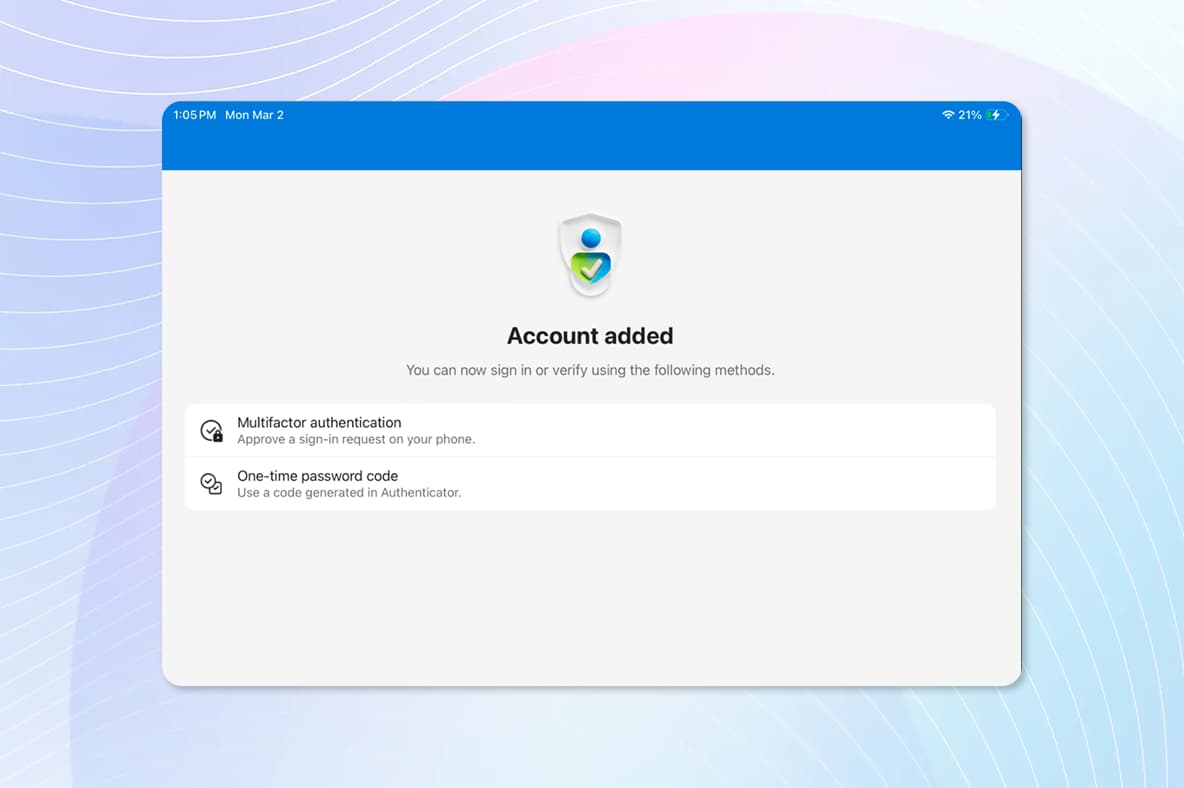
Setp 7
You will see your UCB account listed as an available account within the Authenticator app. Close Authenticator and go back to the home screen.
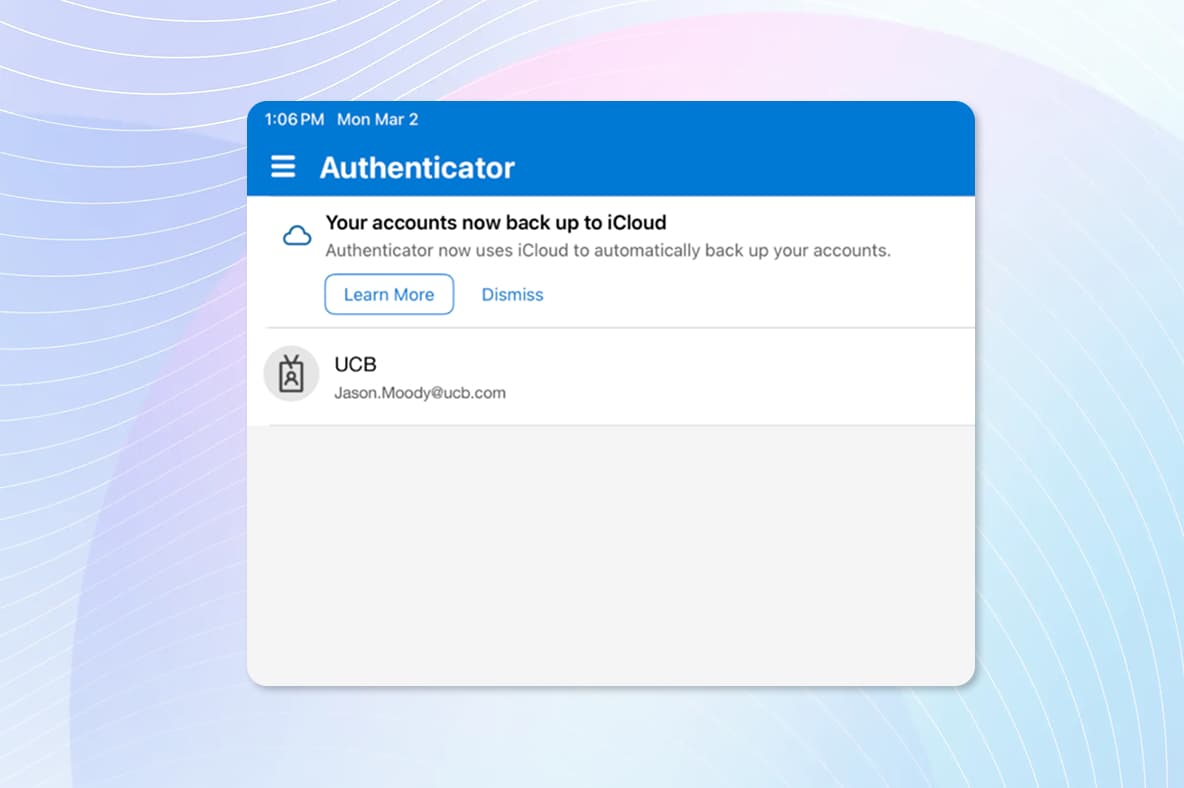
Step 1
Contact the MyIT Service Desk and receive your access details
Step 3
Change your initial password