
Step 1
Step 1
From the device home screen, locate and launch the Authenticator App to begin the MFA registration.
UCB Employees
Set up MFA on your company smartphone
Step 1
From the device home screen, locate and launch the Authenticator App to begin the MFA registration.
Step 2
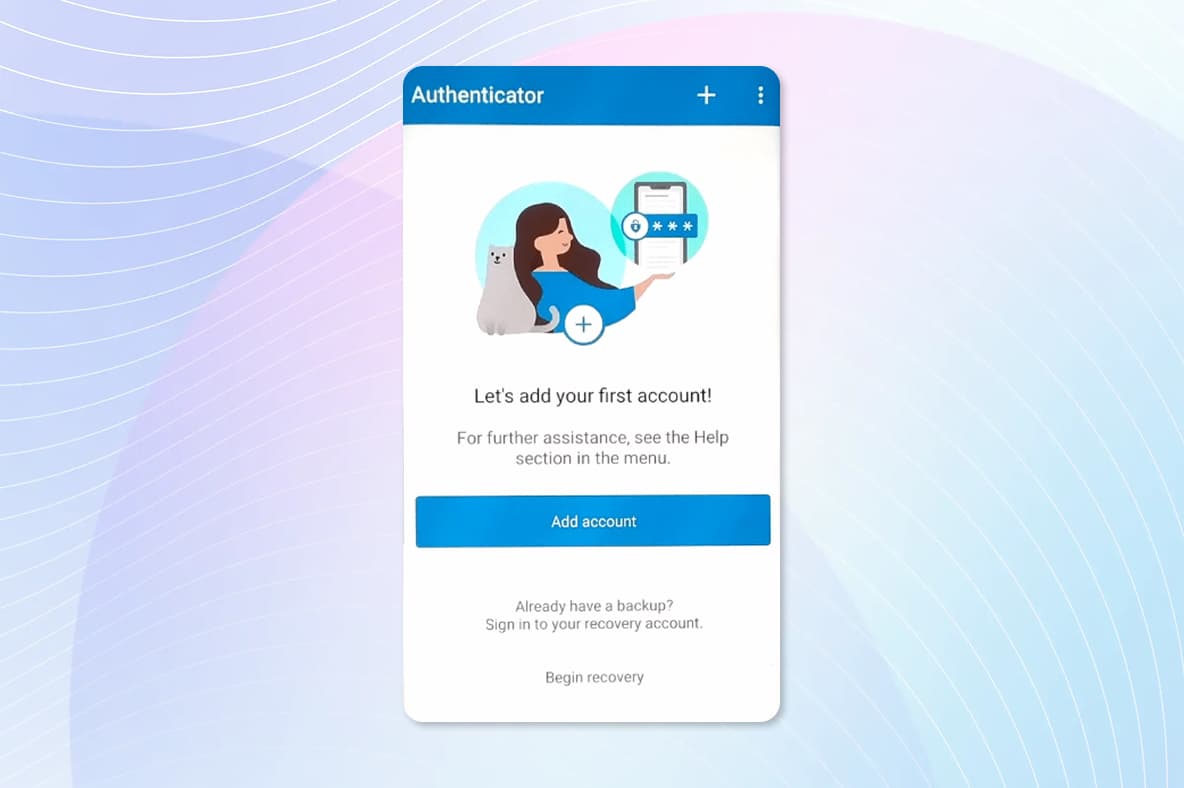
Tap to add a work or school account.
Step 3
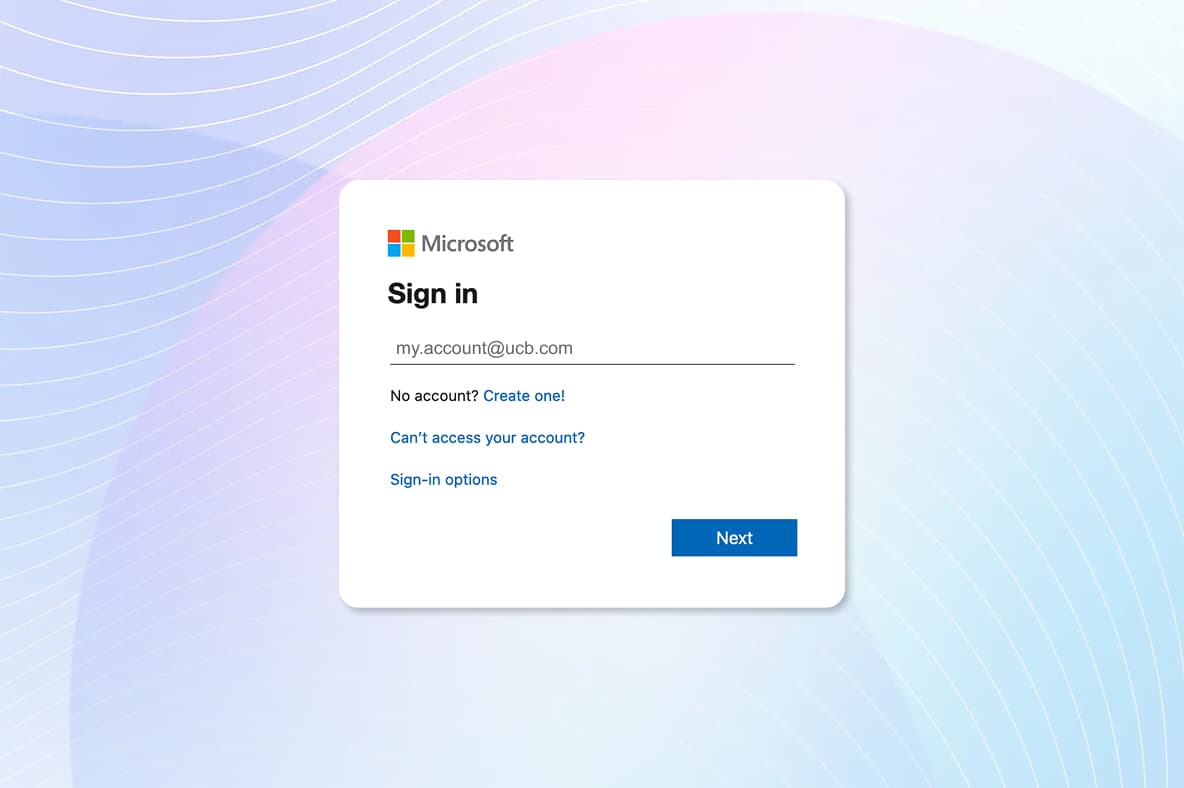
Enter your UCB Email address and tap “Next”.
Step 4
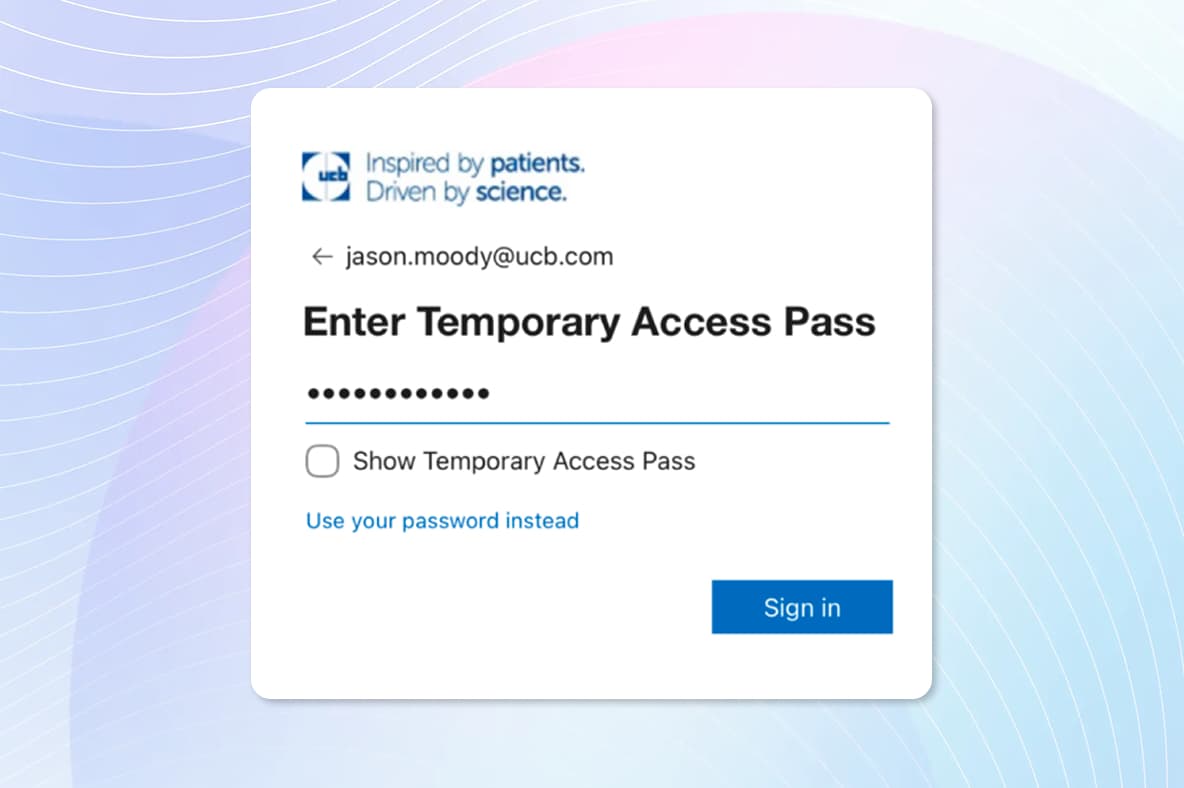
Enter your Temporary Access Pass (TAP) and sign in.
Reminder: If you do not have your TAP or it's been more than two hours since your TAP was issued, please contact the MyIT Service desk to receive a new one.
Step 5
Tap continue to begin the registration process to secure your account.
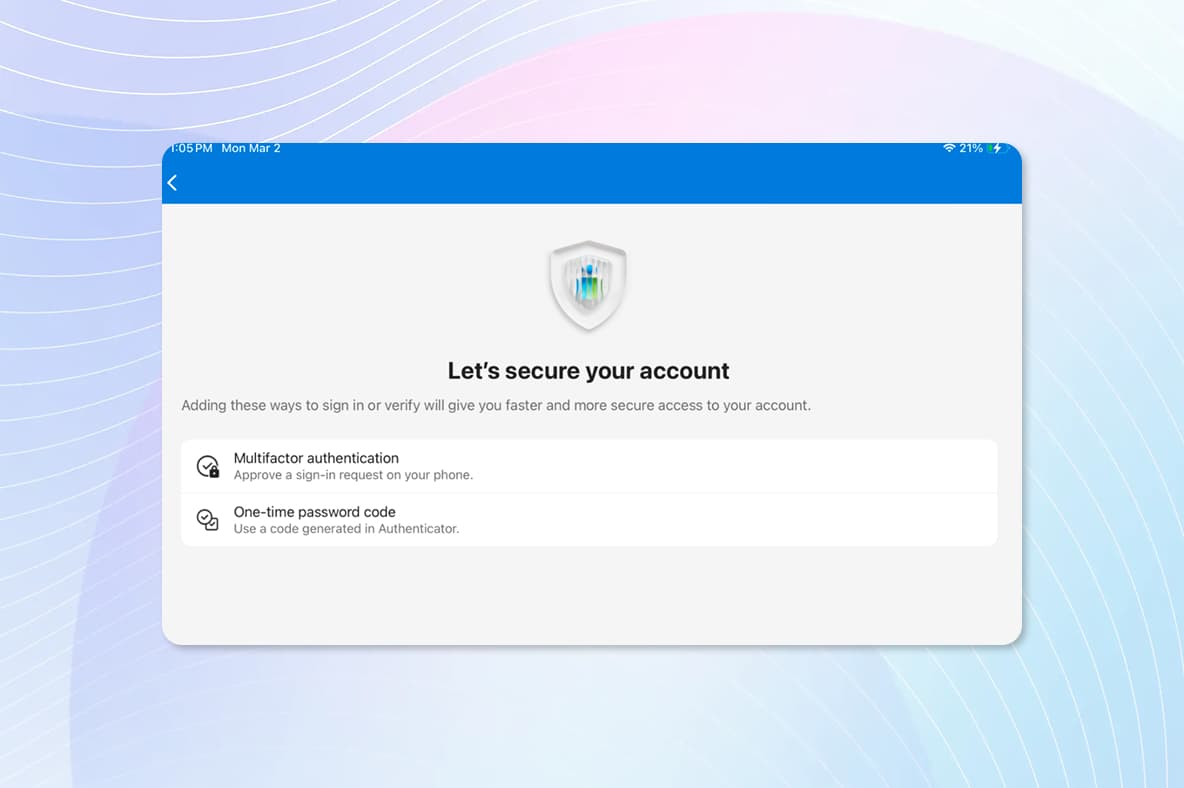
Step 6
Tap Done to complete the registration.
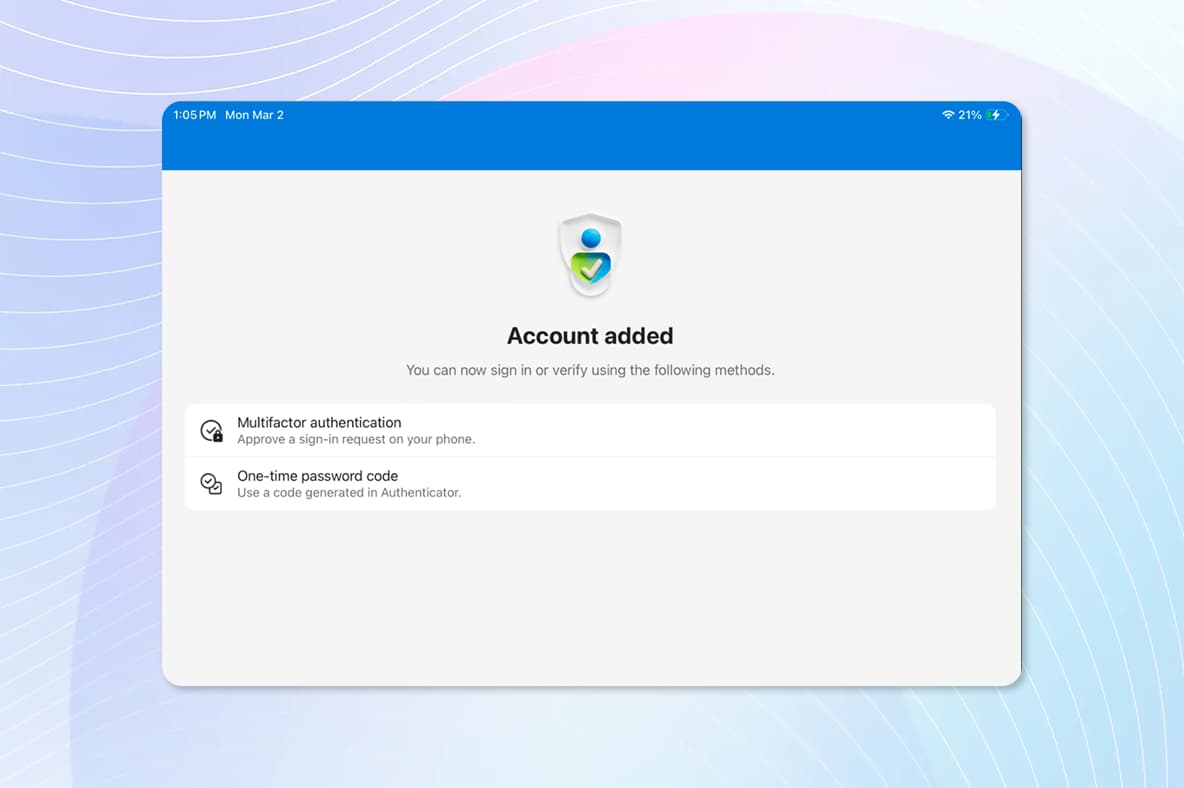
Setp 7
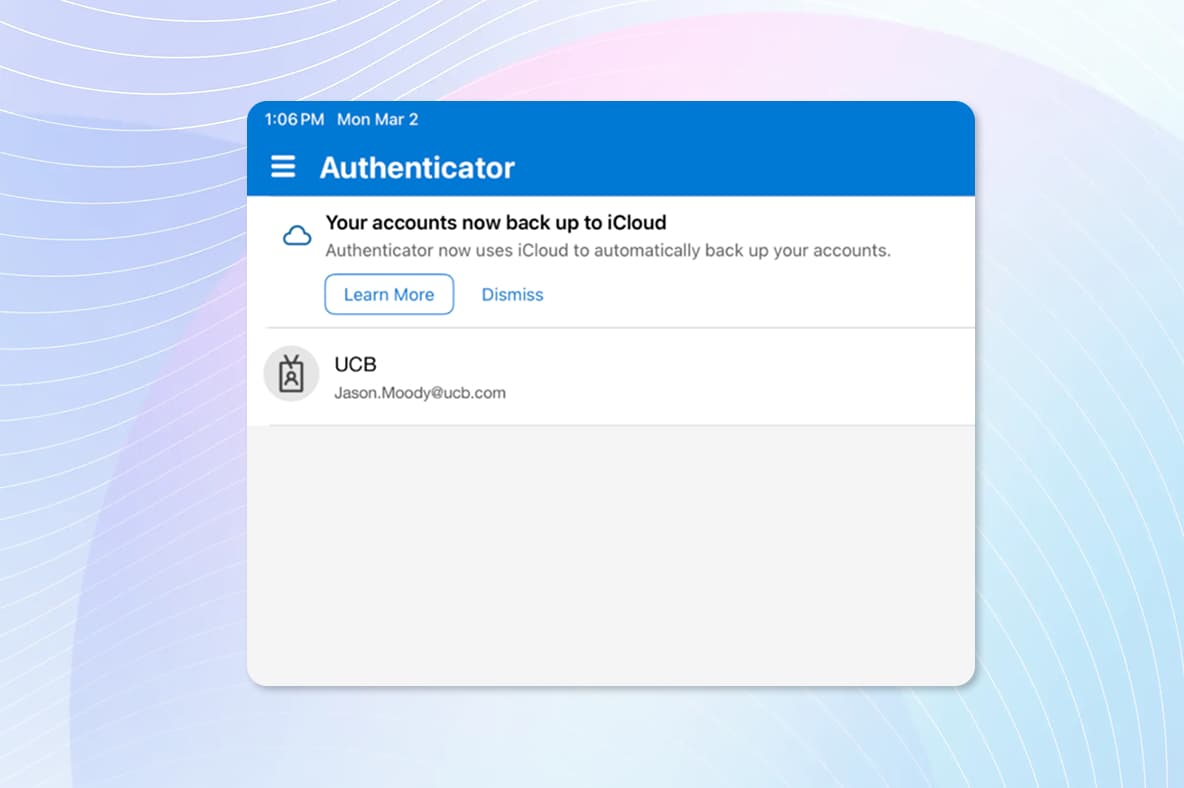
You will see your UCB account listed as an available account within the Authenticator app. Close Authenticator and go back to the home screen.
Step 1
Contact the MyIT Service Desk and receive your access details
Step 3
Set your initial password