
On Windows
On Windows
Open the Microsoft Store
Search for Windows app
Install the app
External Workers
Access your Virtual Desktop using the Windows app
Learn more about the Windows app by clicking here
What you need
A laptop or desktop computer (Windows or macOS)
A stable internet connection
Install the Windows app (recommended)
The Windows app is the official application used to access the Virtual Desktop.
Download Windows App (Windows)
Download Windows App (iOS/iPadOS)
Download Windows App (Android)
Learn more about the Windows app by clicking here
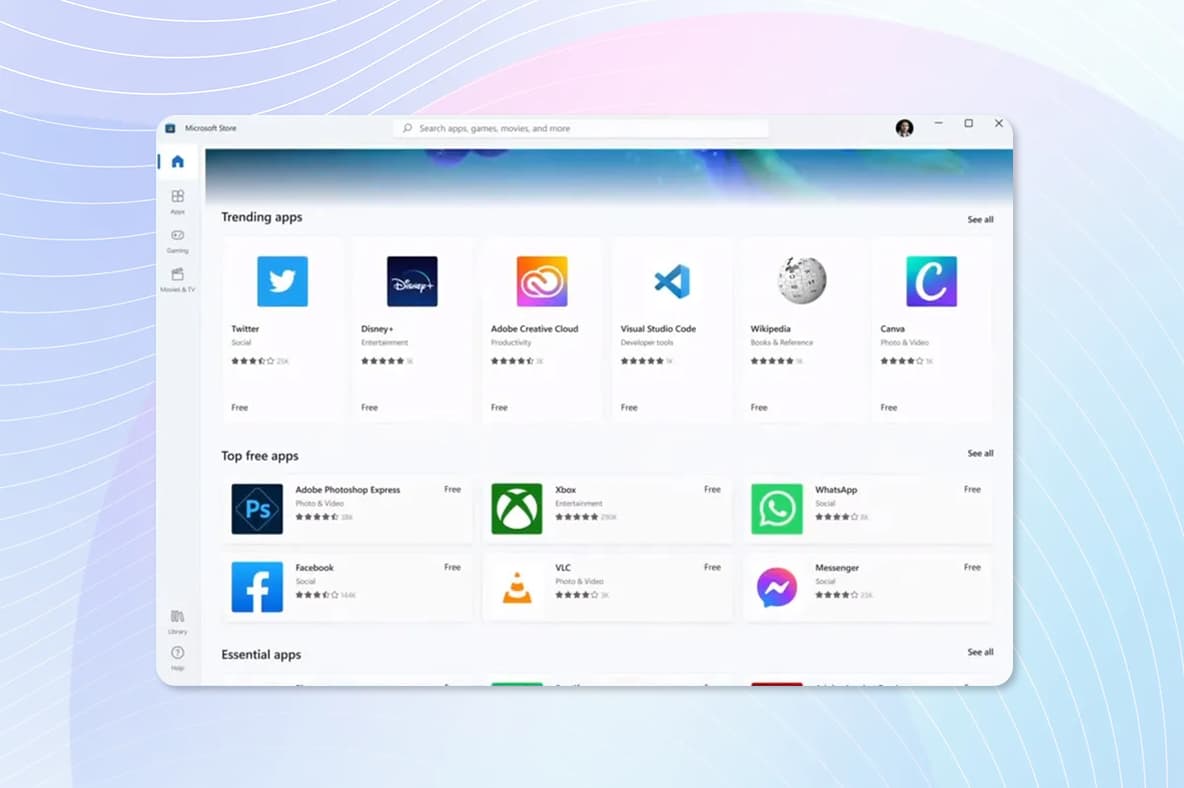
On Windows
Open the Microsoft Store
Search for Windows app
Install the app
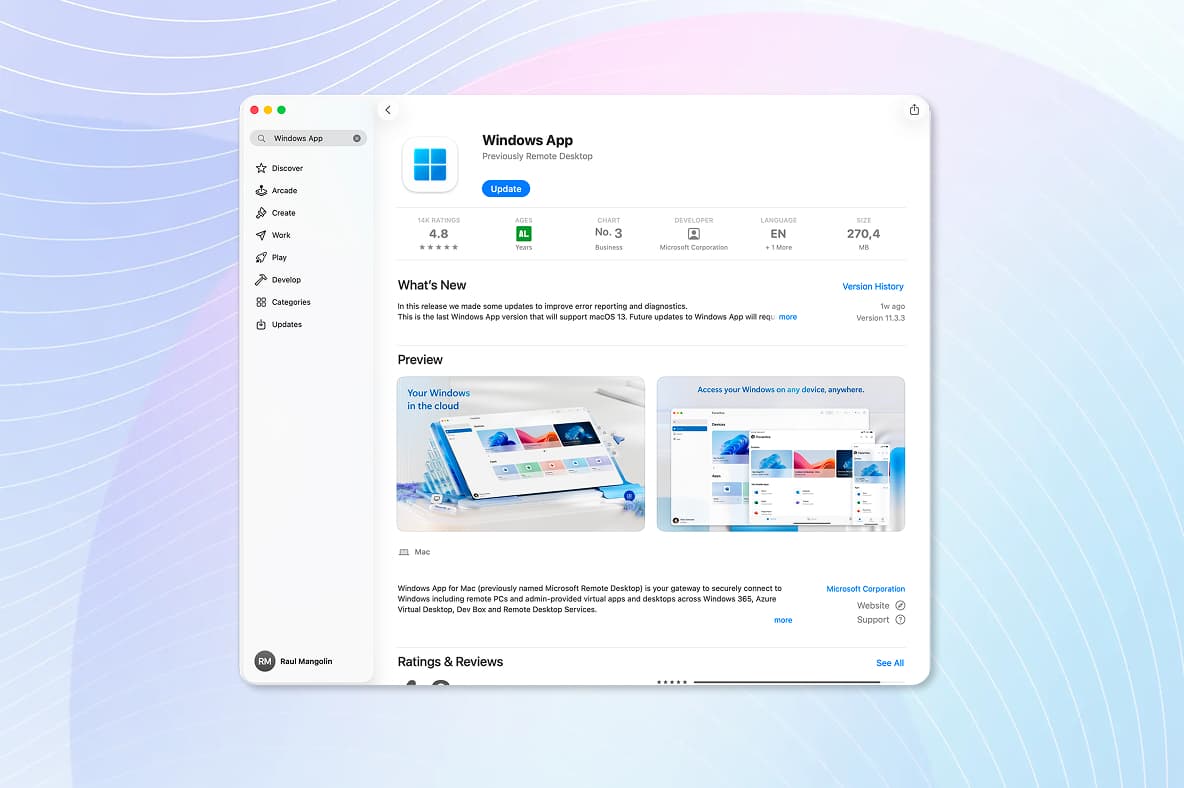
On macOS
Open the Mac App Store
Search for Windows app
Install the app
If you cannot install the app, you may also access the Virtual Desktop via a supported web browser, but the app is strongly recommended for the best experience.
You will need to check with your internal IT department at your company to make sure the Windows application is allowed or can be deployed in your environment.
First-time sign-in
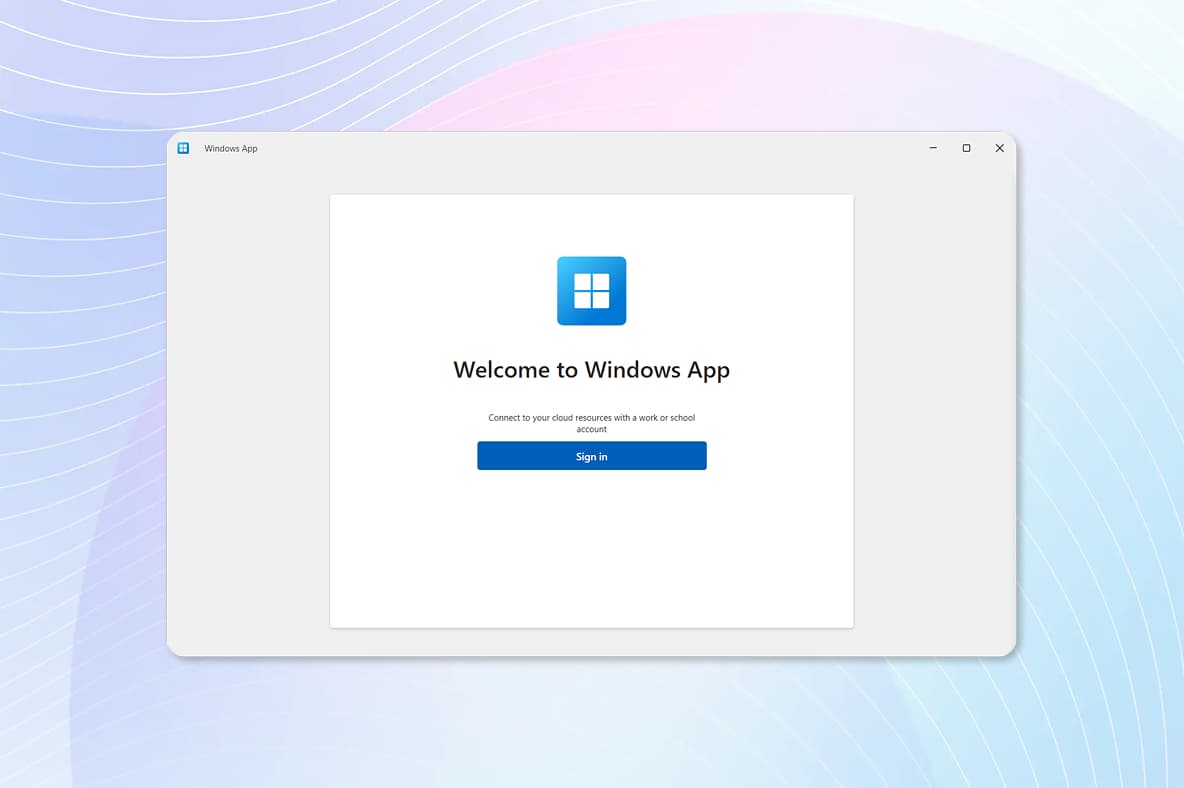
Launch the Windows app
Click Sign in
Enter your company email address
Enter your new password
Approve the sign-in request on your smartphone using the Authenticator app
Connect to your Virtual Desktop
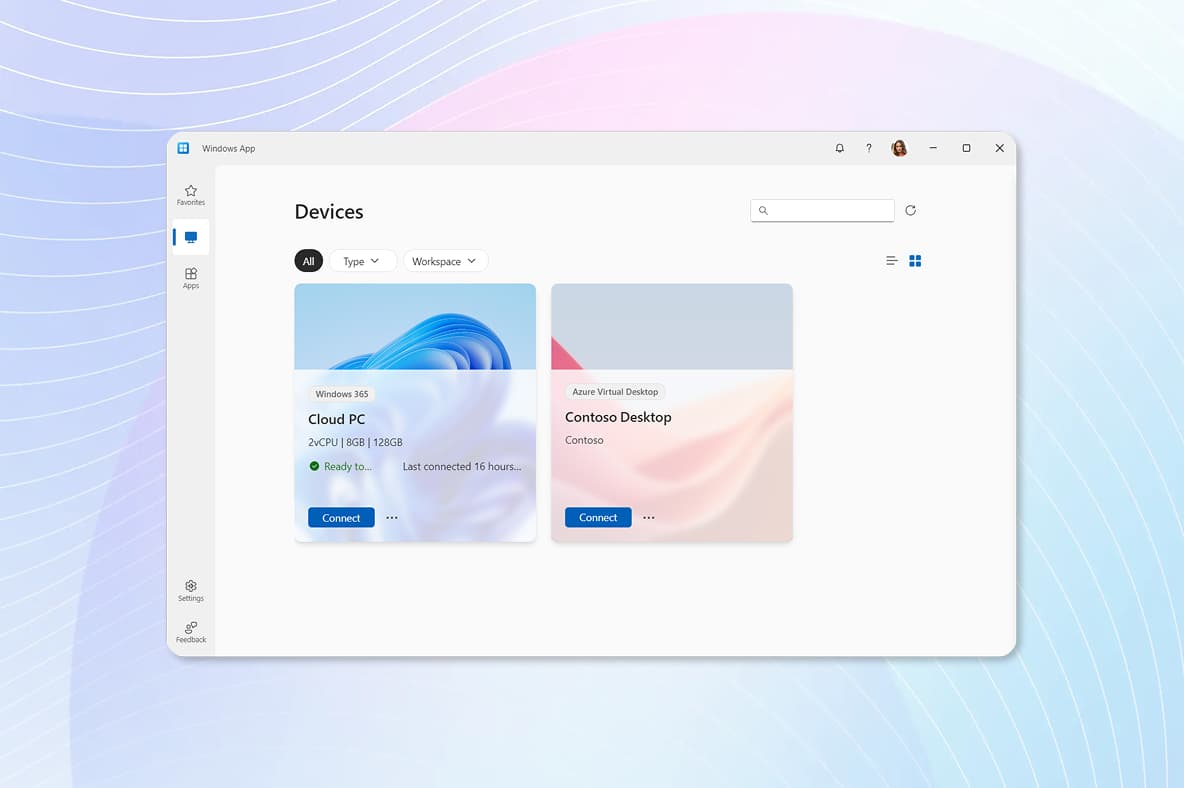
In the Windows app, you will see a list of available workspaces or devices
Select the Virtual Desktop
Click Connect
The first startup may take several minutes — this is normal
Once connected, your Virtual Desktop opens and you can start working.
You’re all set
Your onboarding is now complete. You can securely access company tools and applications through your Virtual Desktop.
If you need help, consult the FAQ section or contact the MyIT Service Desk.
Welcome aboard, and we wish you a great start!
Step 3
Set your initial password
Before You begin
Go back and start from the beginning.