
On your smartphone
On your smartphone
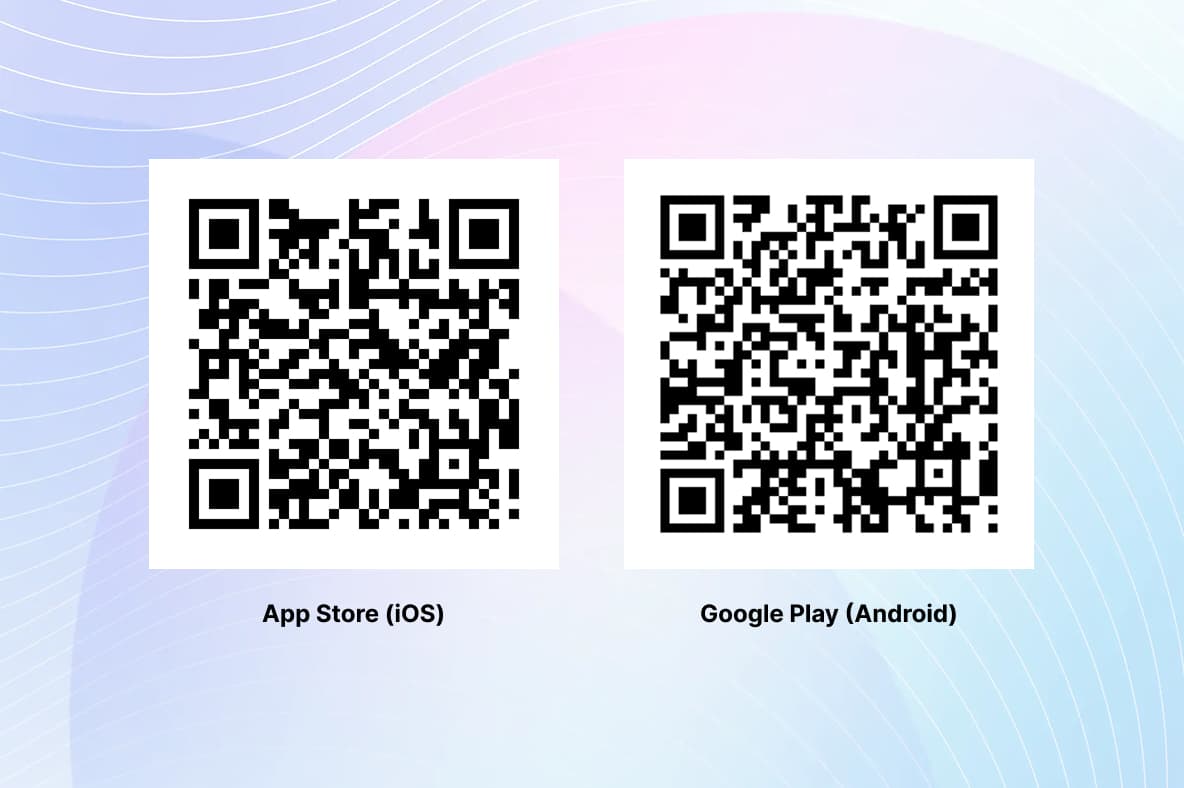
Open the App Store (iPhone) or Google Play Store (Android)
Search for Microsoft Authenticator
Install the app
Make sure your phone has an active internet connection
External Workers
Set up Multi-Factor Authentication (MFA)
Multi-Factor Authentication (MFA) protects your UCB account by requiring multiple forms of authentication such as a password and push notification on your mobile phone.
On your smartphone
Open the App Store (iPhone) or Google Play Store (Android)
Search for Microsoft Authenticator
Install the app
Make sure your phone has an active internet connection
On your laptop
Open Microsoft Edge
Open a private (InPrivate) window
Go to the MFA registration page https://mfa.ucb.com/
Sign in using:
Your company email address
Your TAP
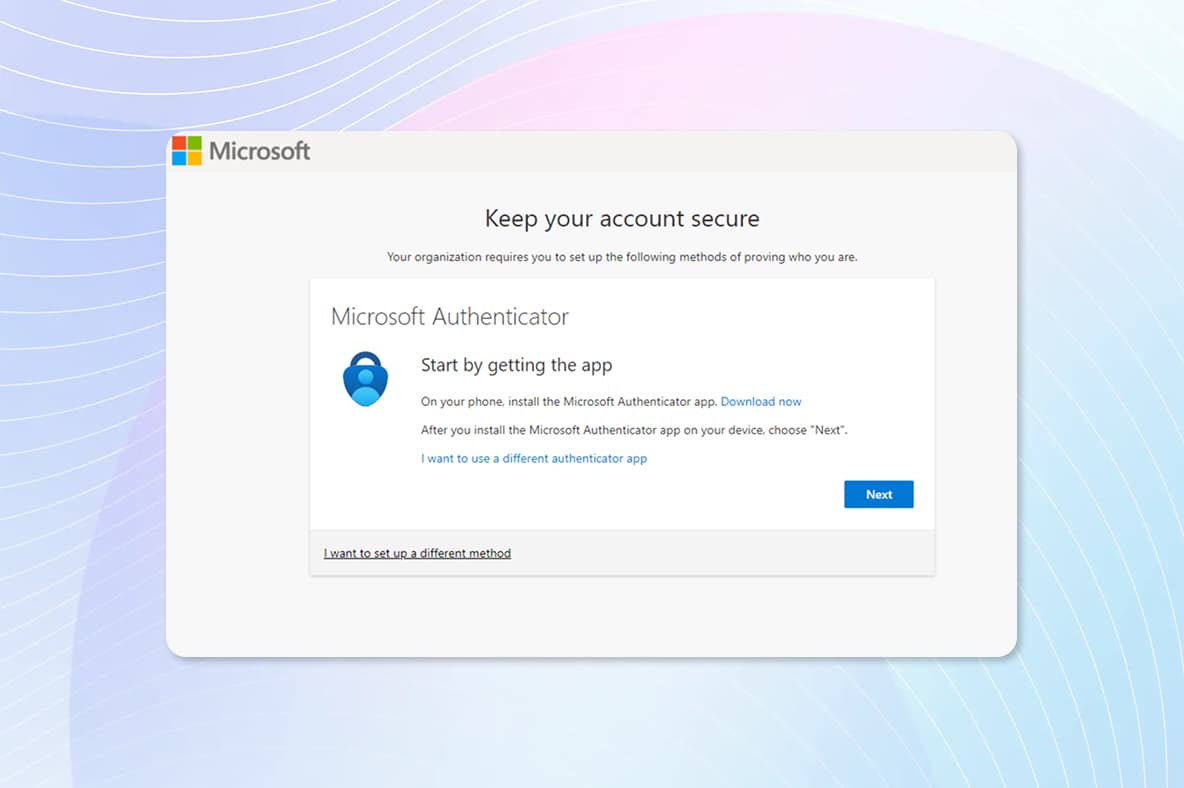
Link your smartphone
After signing in, you will be prompted to set up MFA
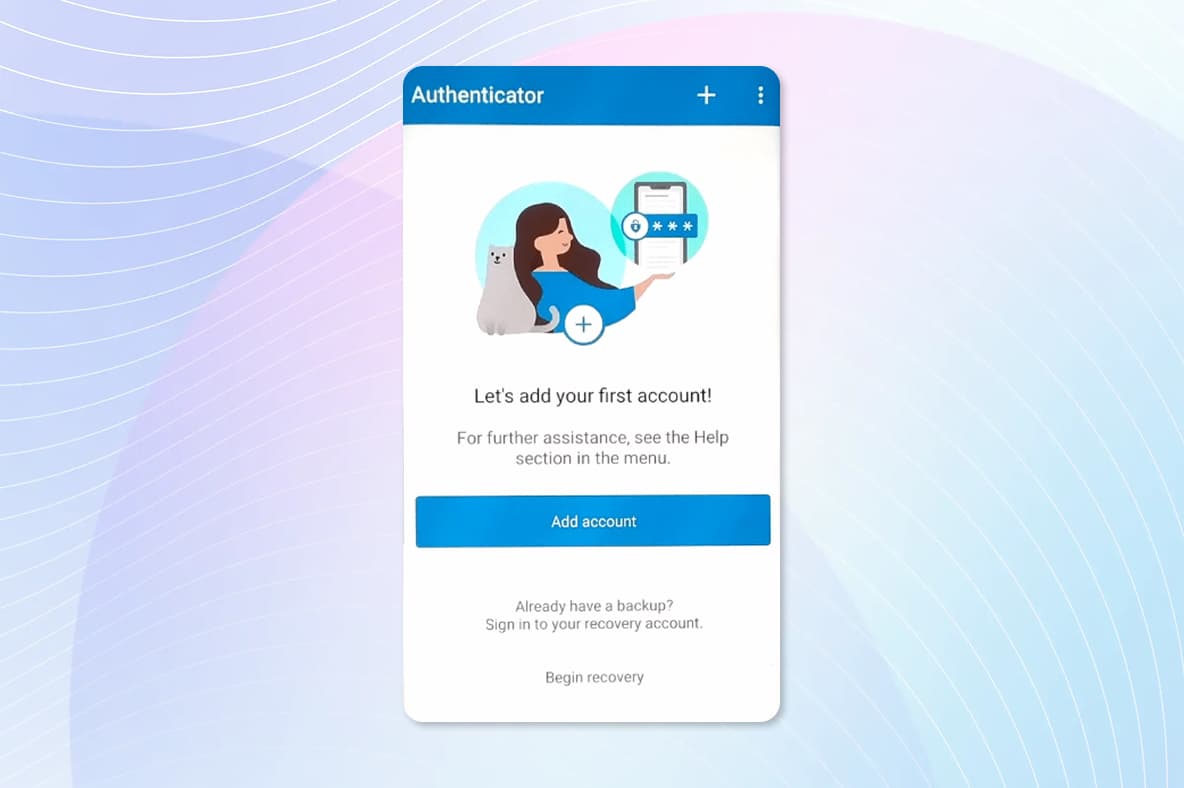
Open the Microsoft Authenticator app on your phone
Tap Add account or the “+” icon
Select Work or school account
Choose Scan QR code
Scan the QR code shown on your laptop screen
Complete verification
A notification appears on your phone
If asked, enter the number displayed on your laptop
Approve the request in the app
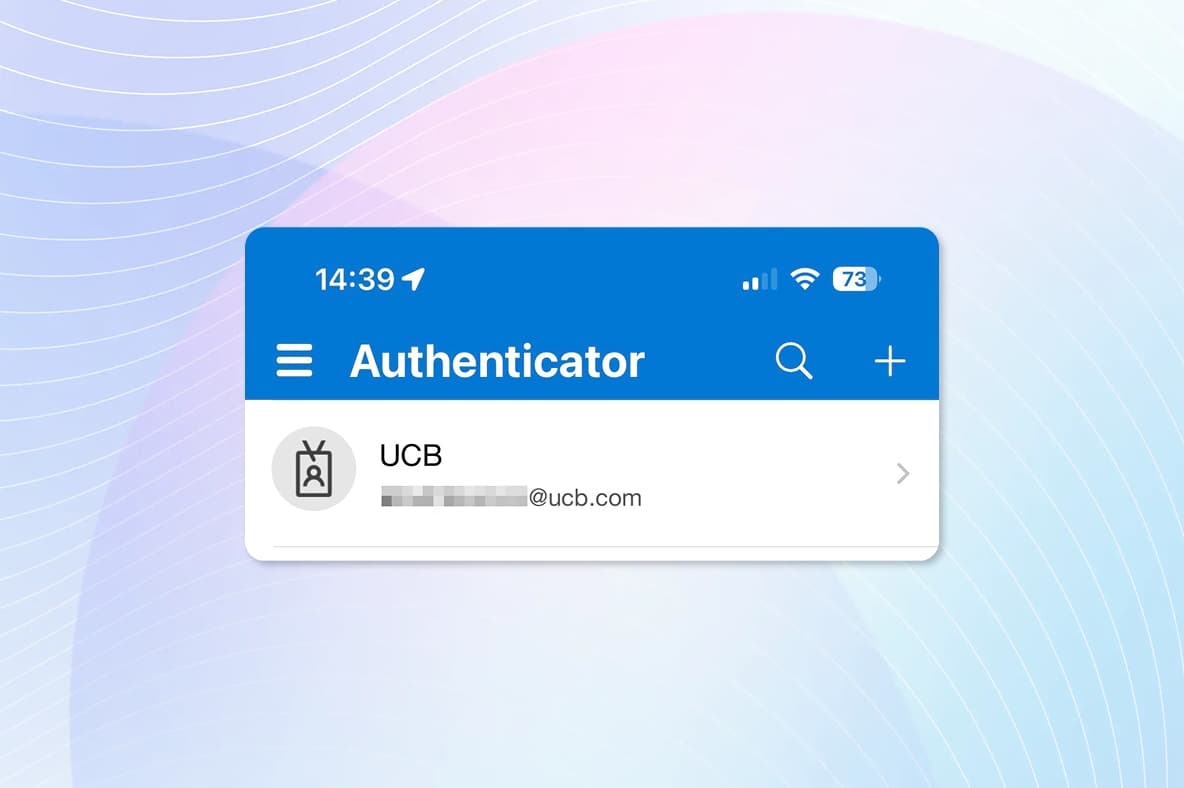
When you see a confirmation message on your laptop, MFA is successfully set up.
Step 1
Contact the MyIT Service Desk and receive your access details
Step 3
Set your initial password