Step 1
Step 1
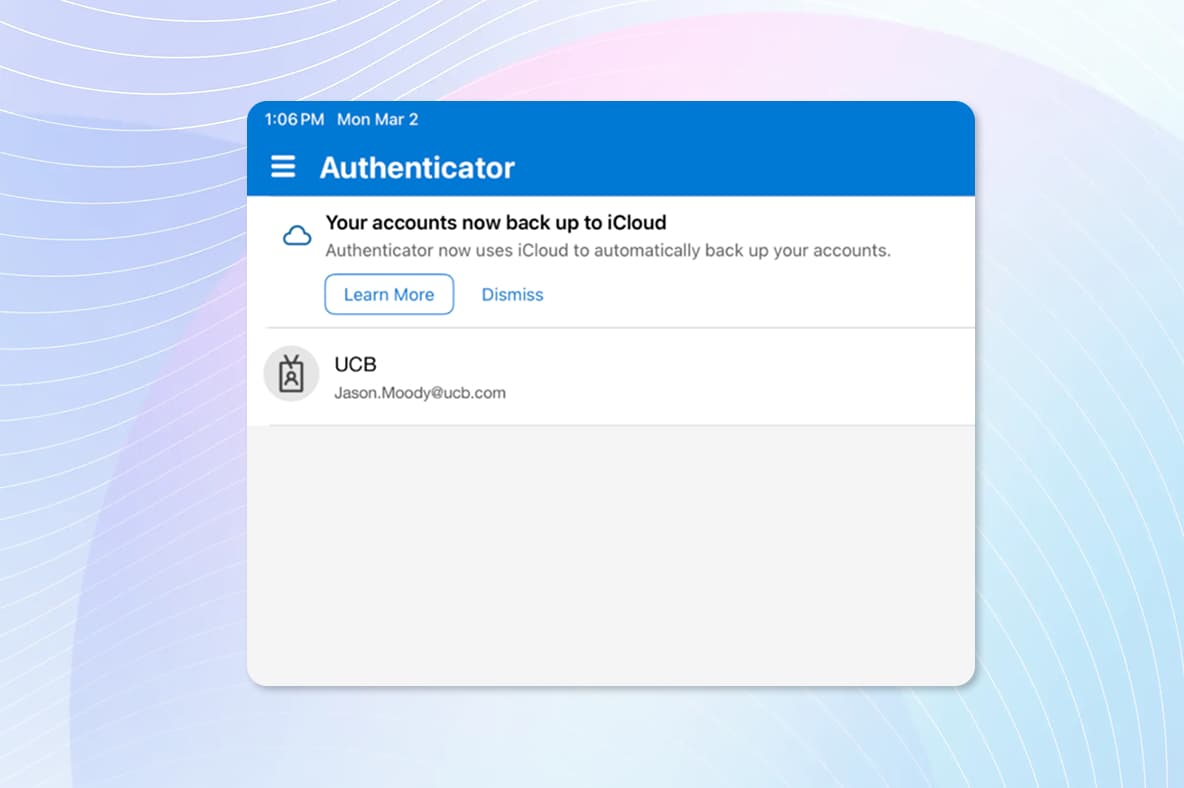
From the device home screen, locate and launch the Authenticator App to begin the MFA registration.
FAQ
On this page, you will find information on how to set up Multifactor Authentication (MFA) to add an extra layer of security to your UCB account and protect it from unauthorized access.
Step 1
From the device home screen, locate and launch the Authenticator App to begin the MFA registration.
Step 2
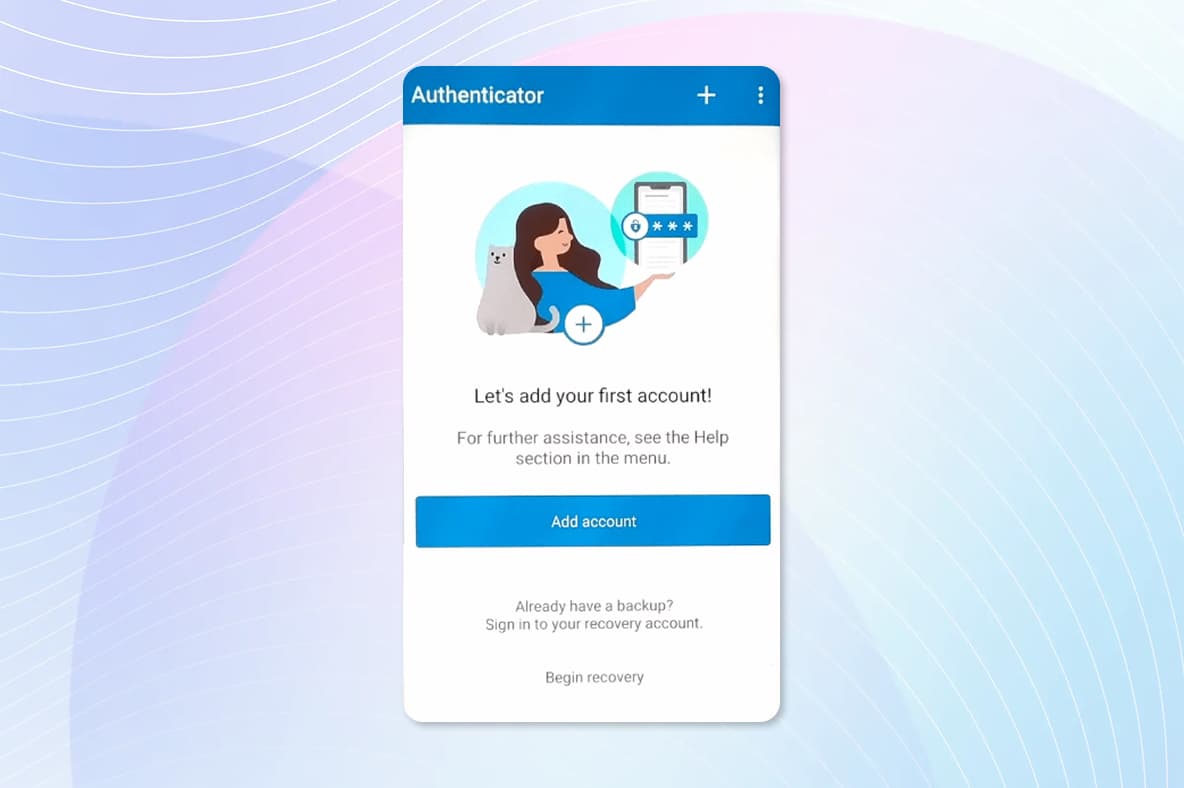
Tap to add a work or school account.
Step 3
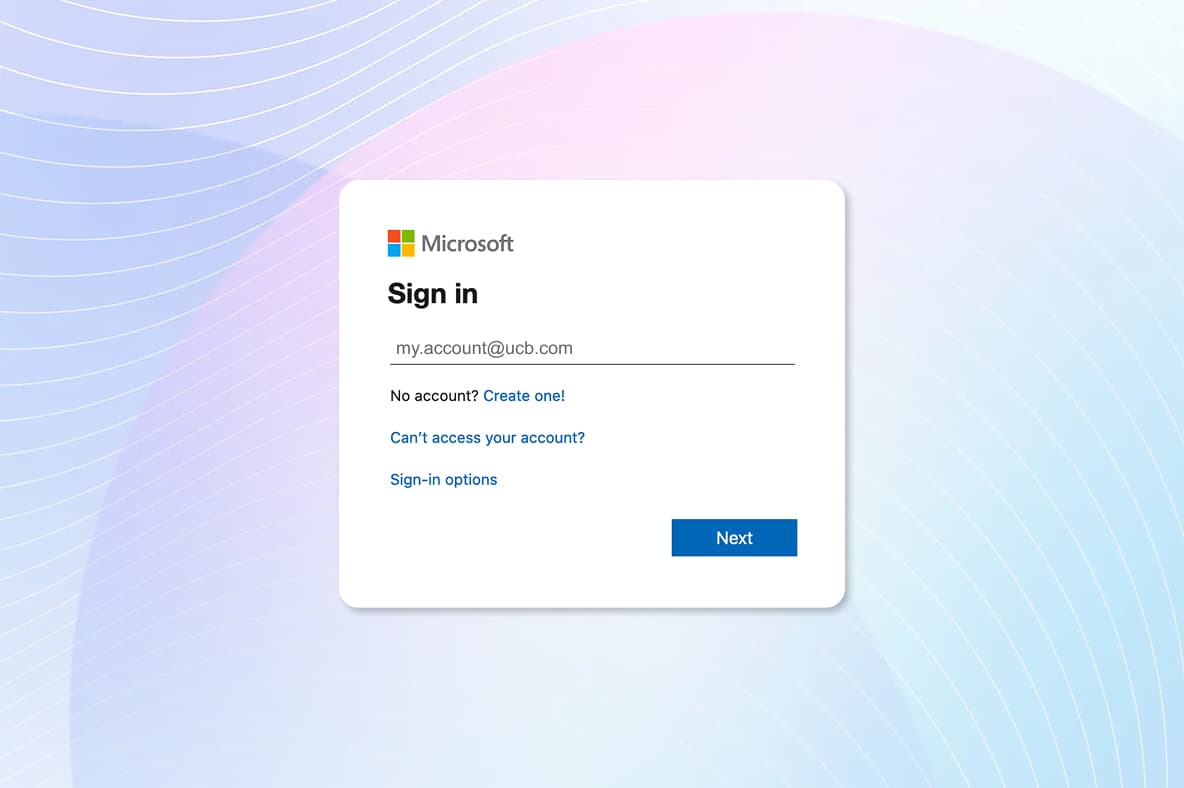
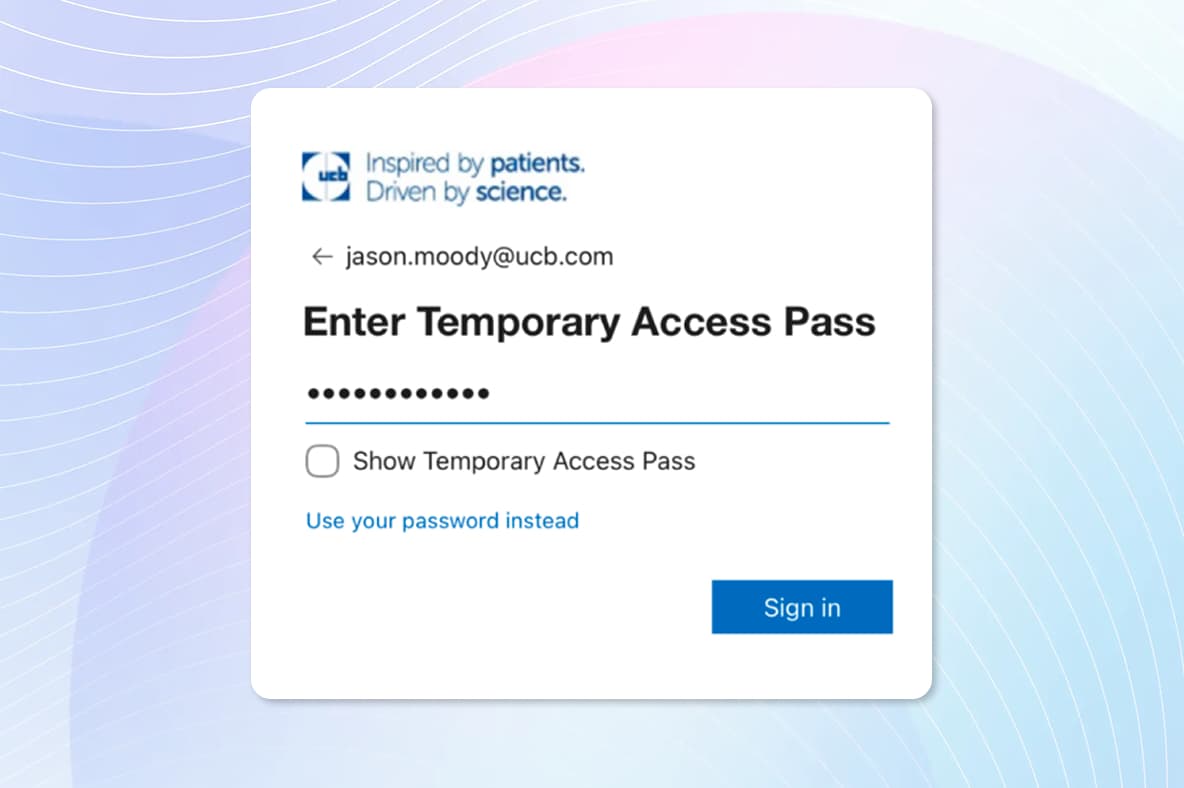
Enter your UCB Email address and tap “Next”.
Step 4
Enter your Temporary Access Pass (TAP) and sign in.
Reminder: If you do not have your TAP or it's been more than two hours since your TAP was issued, please contact the MyIT Service desk to receive a new one.
Step 5
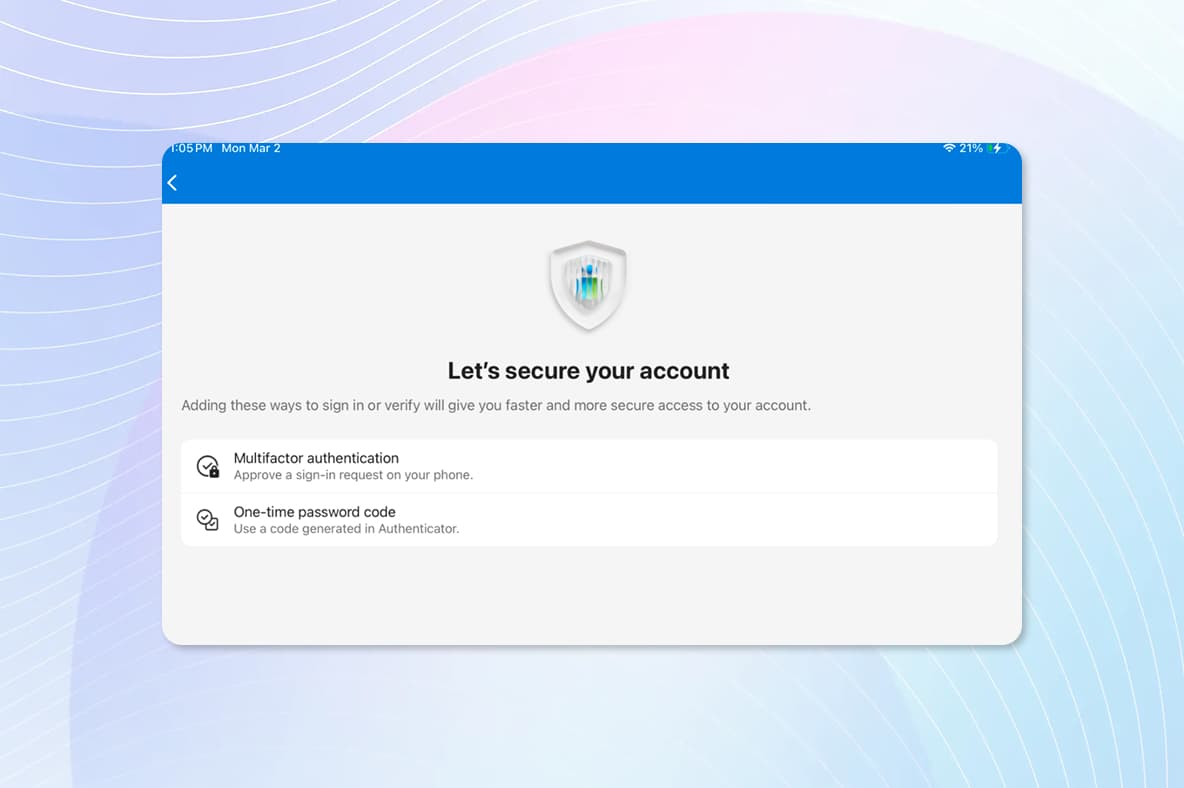
Tap continue to begin the registration process to secure your account.
Step 6
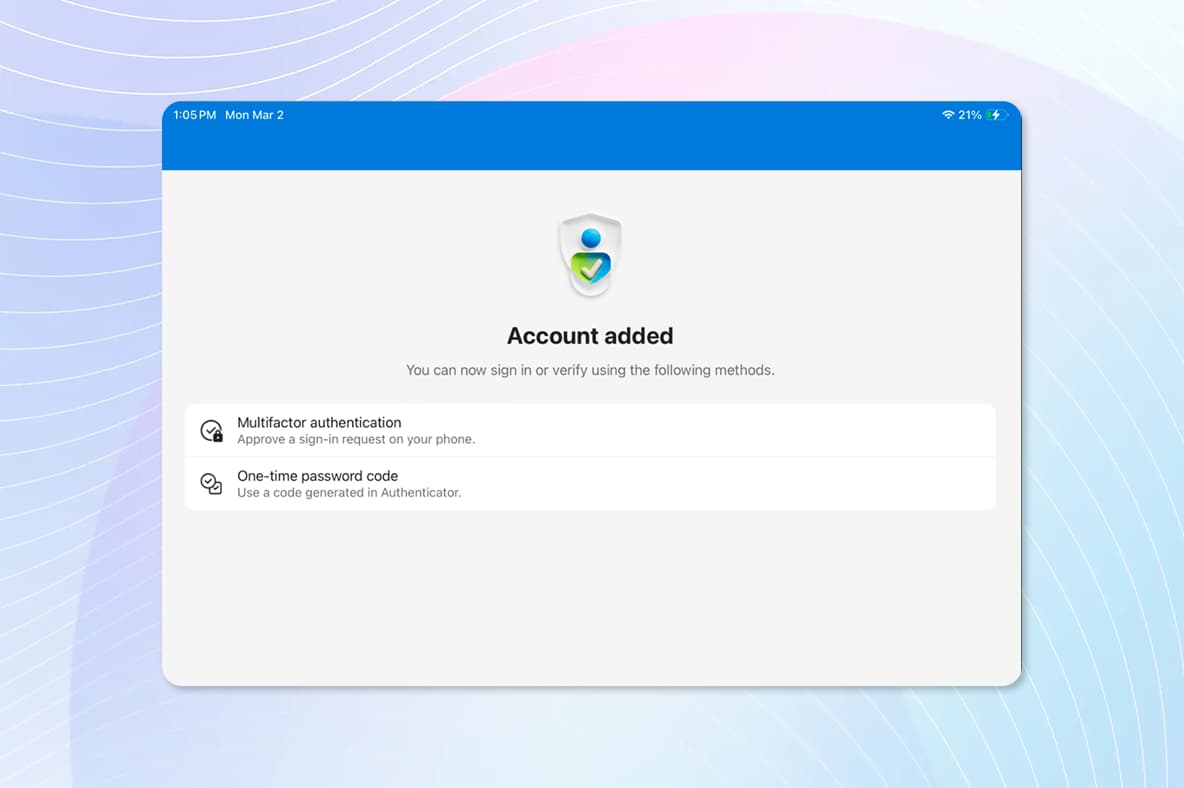
Tap Done to complete the registration.
Setp 7
You will see your UCB account listed as an available account within the Authenticator app. Close Authenticator and go back to the home screen.