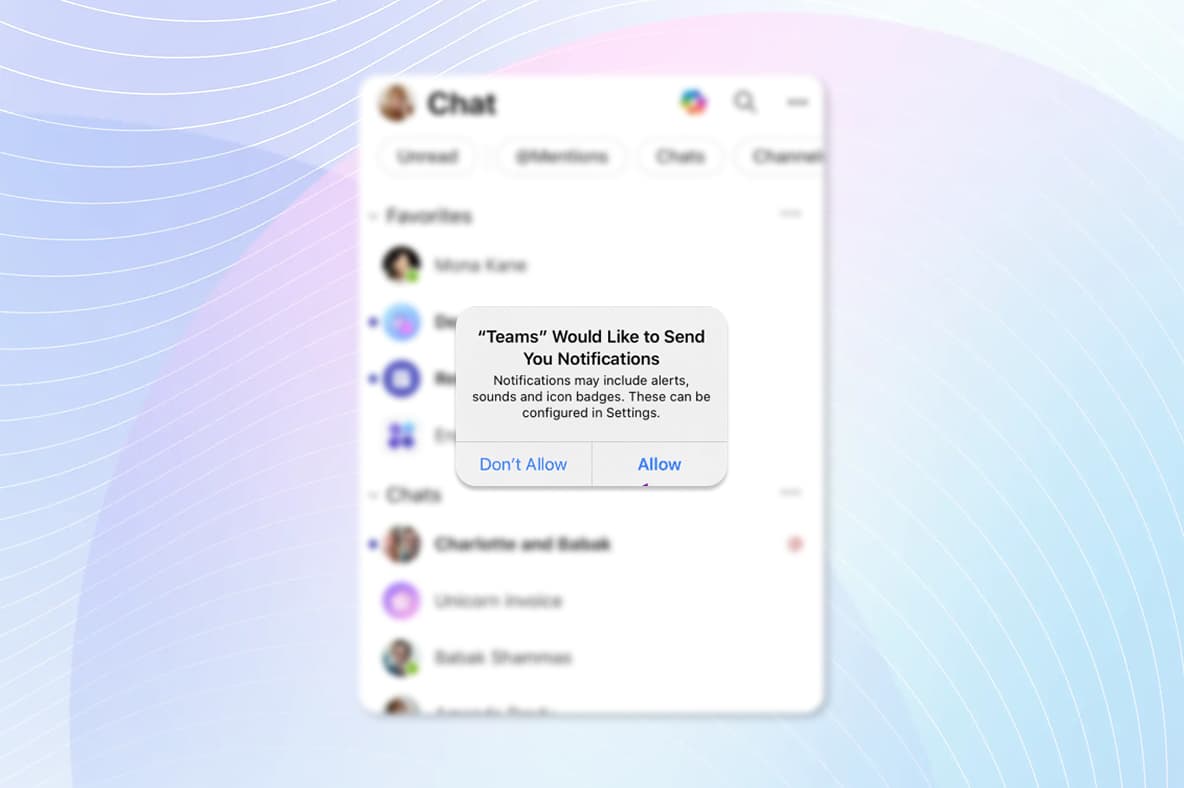
Step 1
Step 1
Tap to launch the Comp Portal from the home screen.
FAQ
On this page, you will find information on how to configure your UCB account across different apps. Follow the guides to ensure your account is set up correctly and ready to use.
Company portal sign-in is required to ensure device compliance and full access to all UCB resources.
Step 1
Tap to launch the Comp Portal from the home screen.
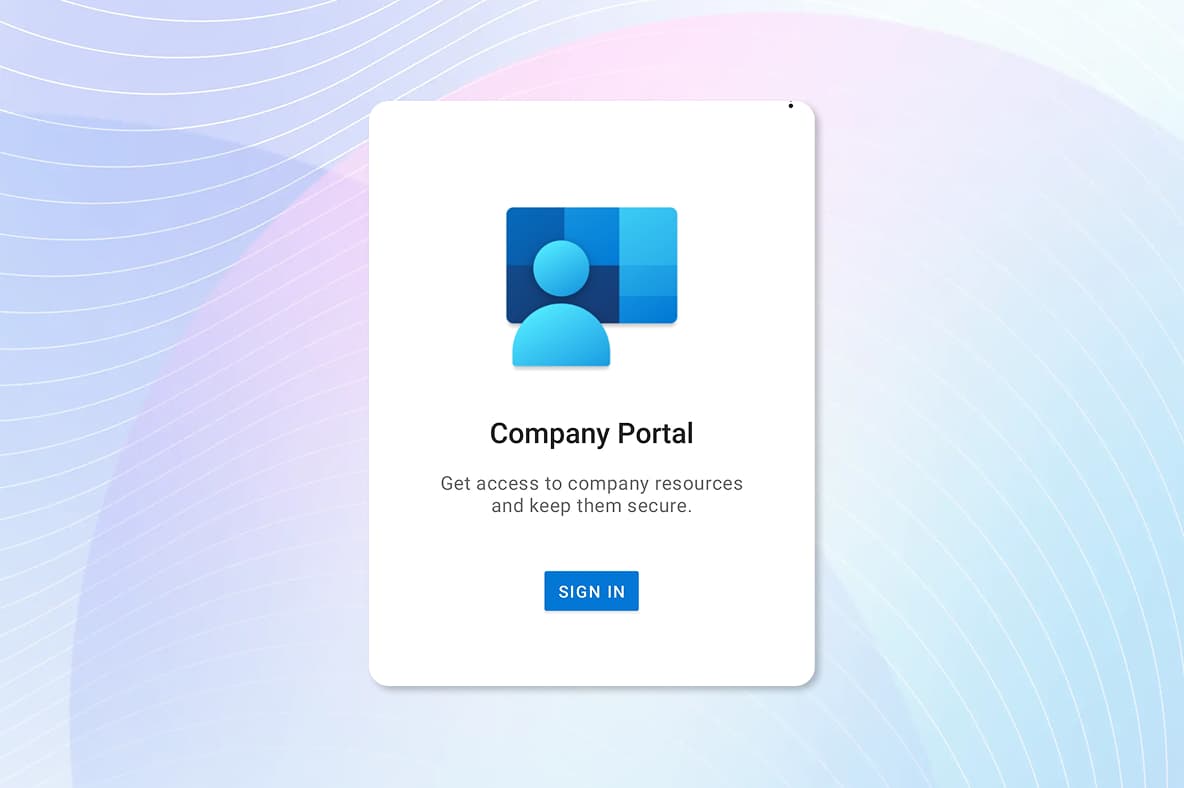
Step 2
Tap Sign-In.
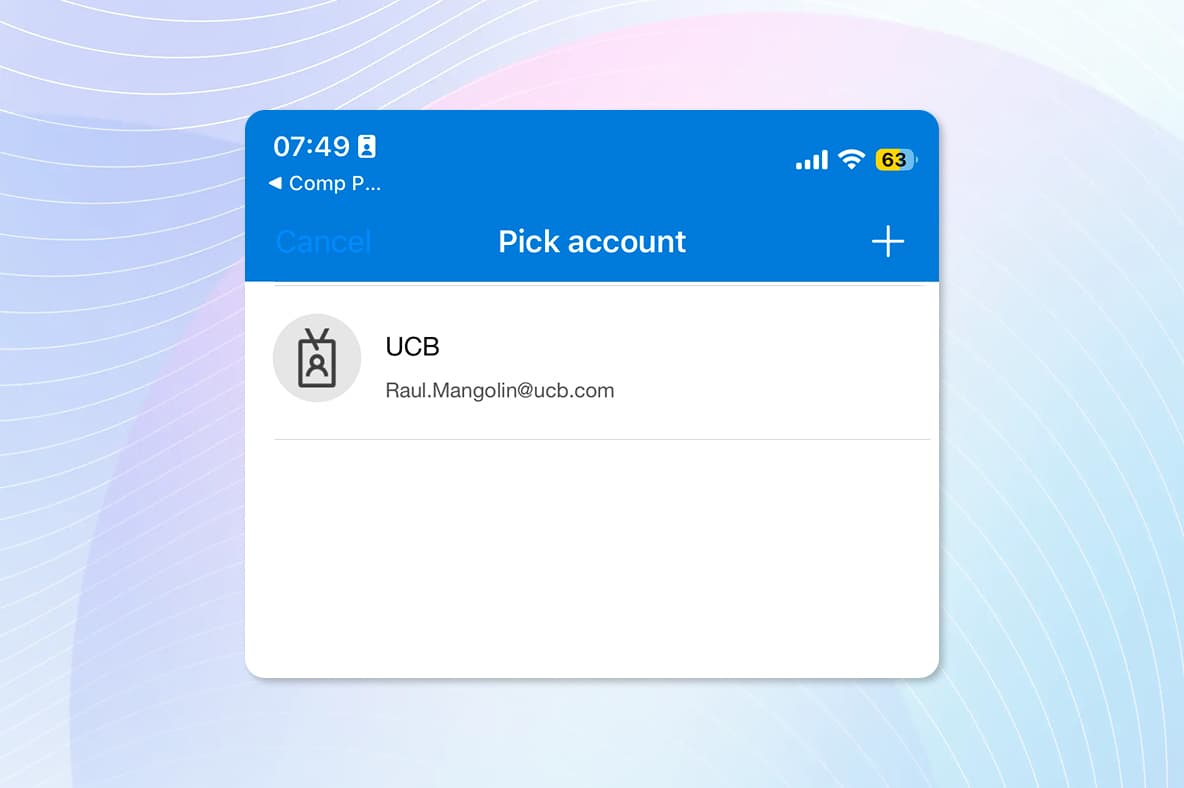
Step 3
Tap to select your UCB email address.
Step 4
Tap OK.
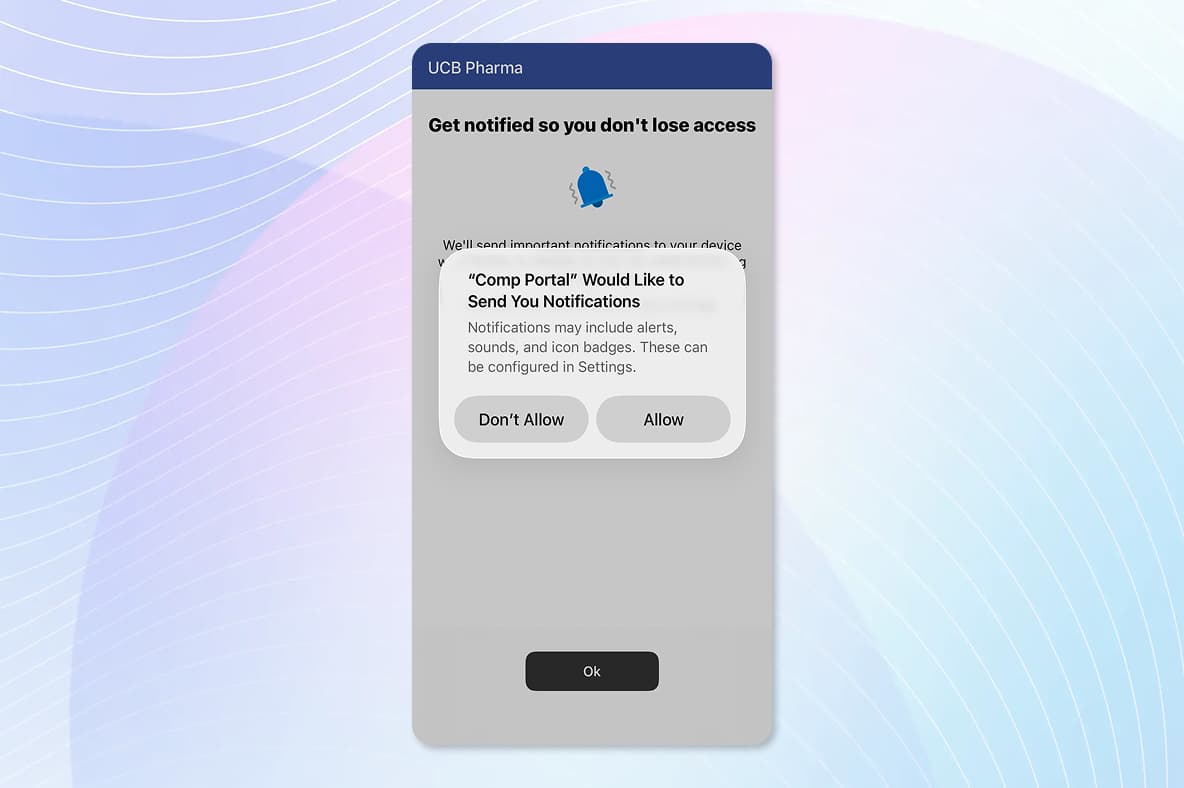
Step 1
Tap to launch the Outlook app from the home screen.
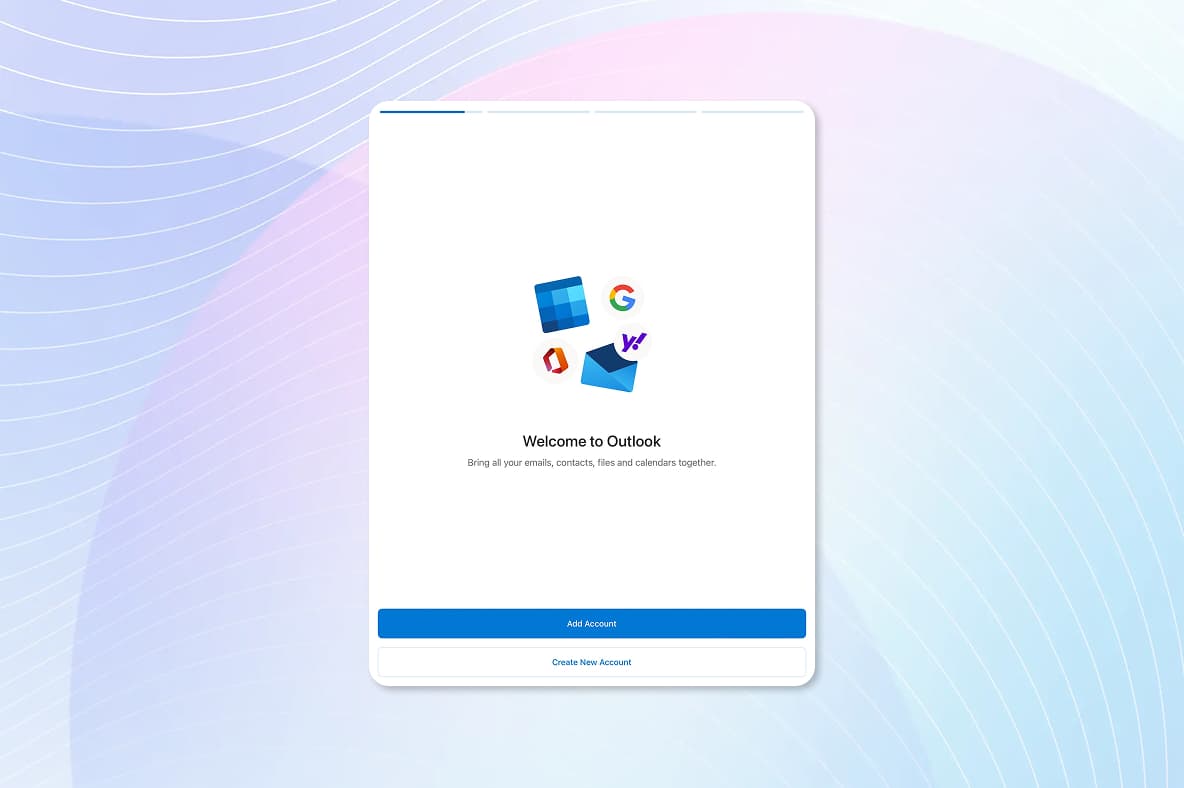
Step 2
On the welcome to Outlook screen, tap Add account.
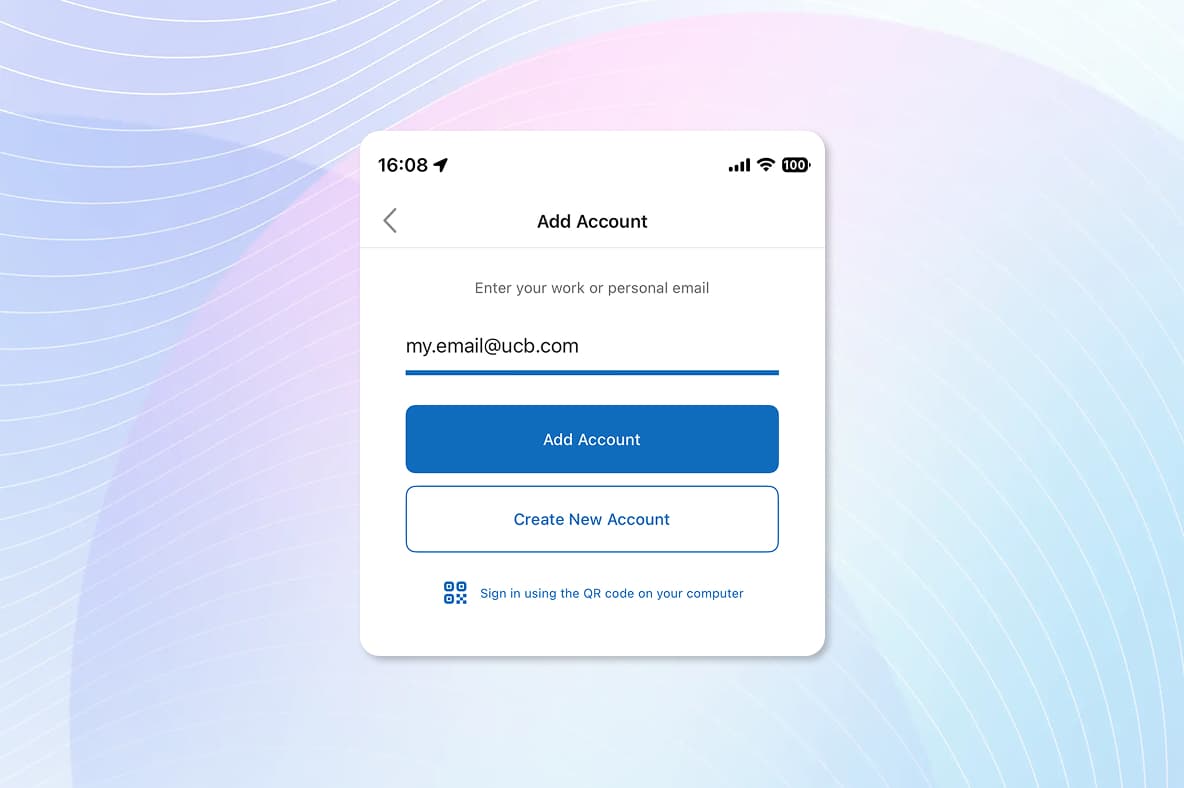
Step 3
Tap Add account again and then tap to accept push notifications. Your Outlook client should begin to loan email.
Step 1
Tap to launch the MS Teams app from the home screen.
Step 2
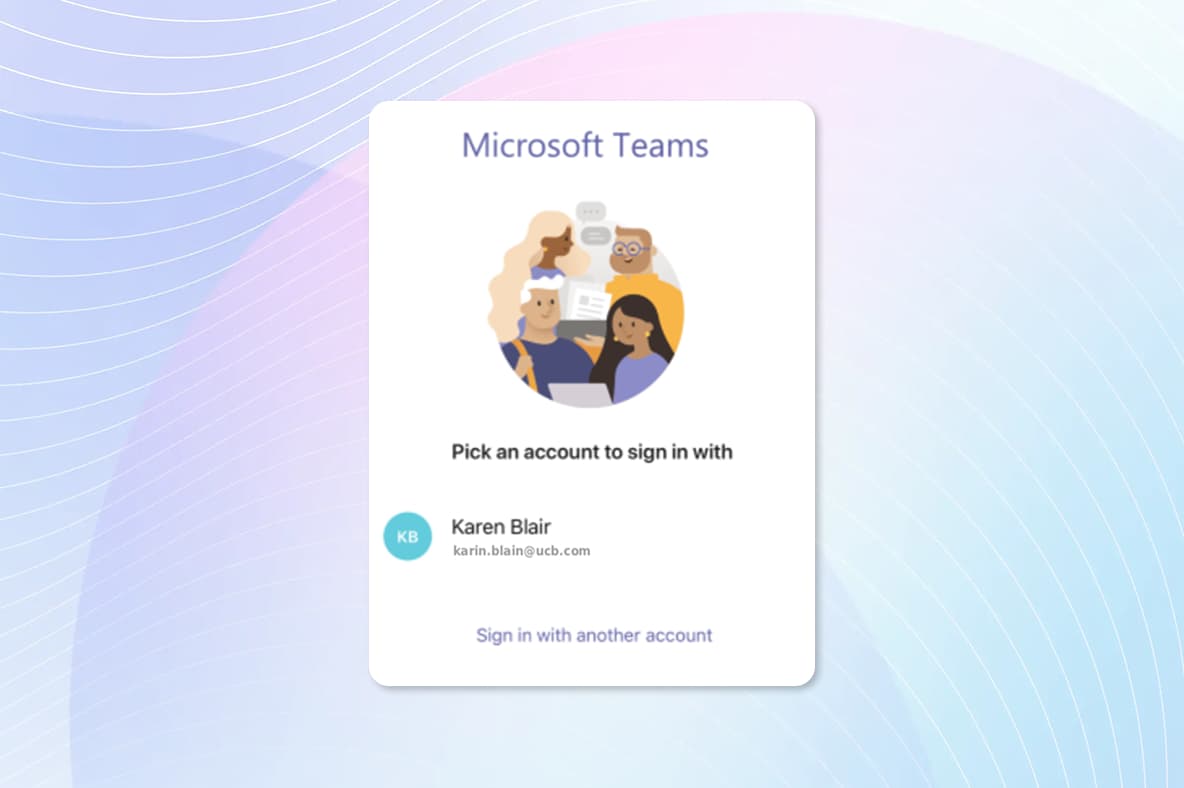
Select your email address from the account list.
Step 3
Select to allow notifications and then tap next at the bottom to finish the setup.