
Step 1
Step 1
Tap to launch the Self Service Password reset tool from the device home screen.
FAQ
You will walk through the process to set your personal UCB network.
The next step will walk you through the process to set your personal UCB network.
Step 1
Tap to launch the Self Service Password reset tool from the device home screen.
Step 2
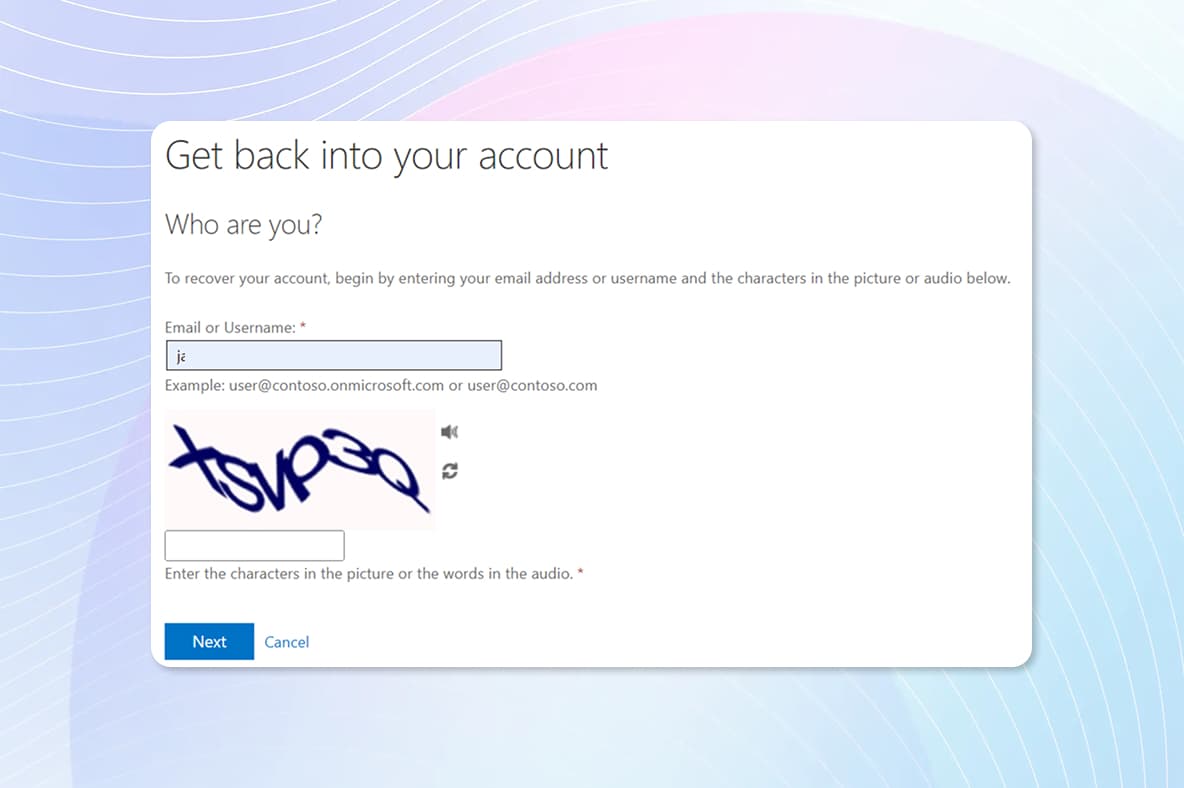
Select “I forgot my password” and tap next.
Step 3
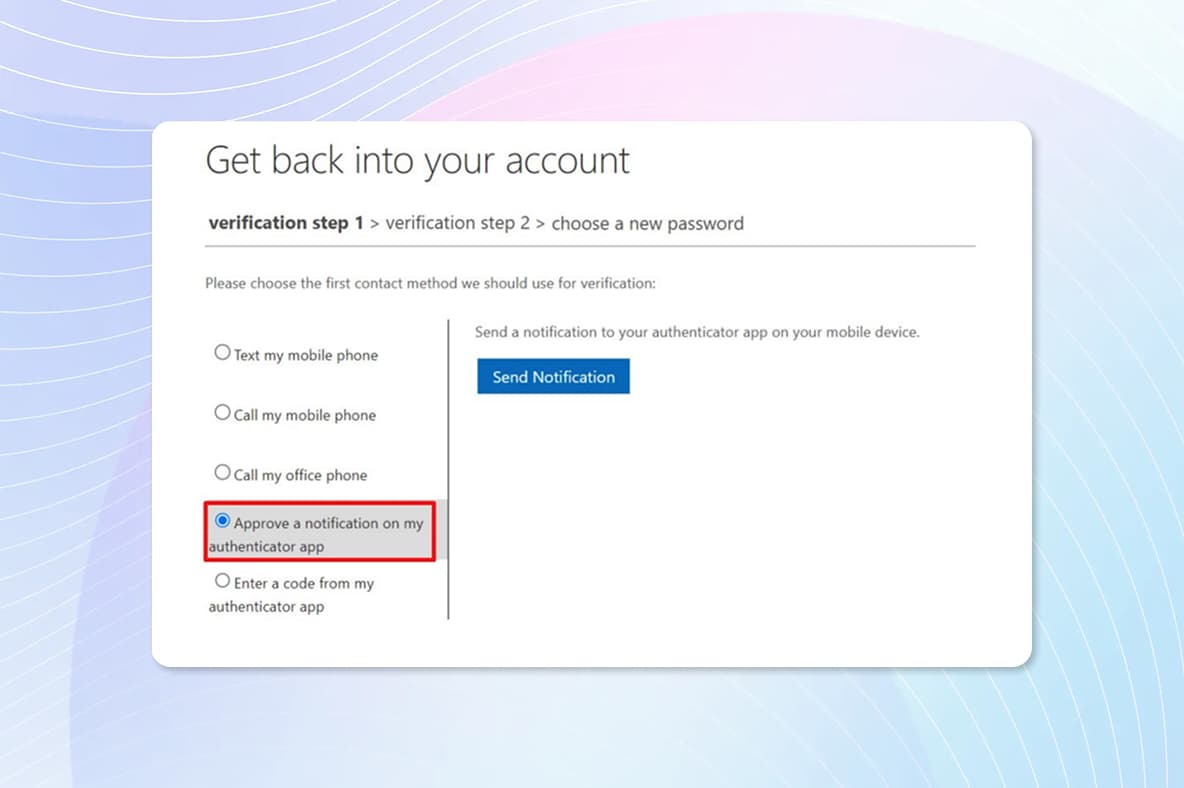
Select “Approve a notification on my Authenticator App” and tap to send notification.
Step 4
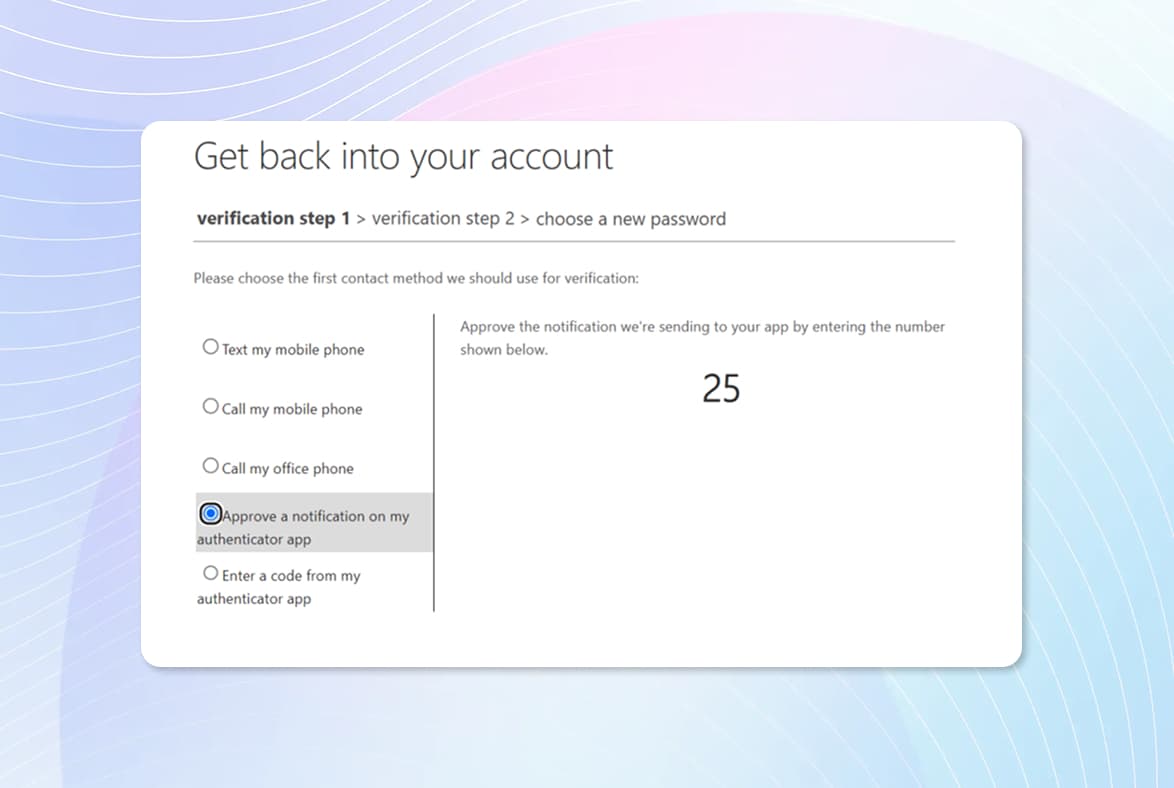
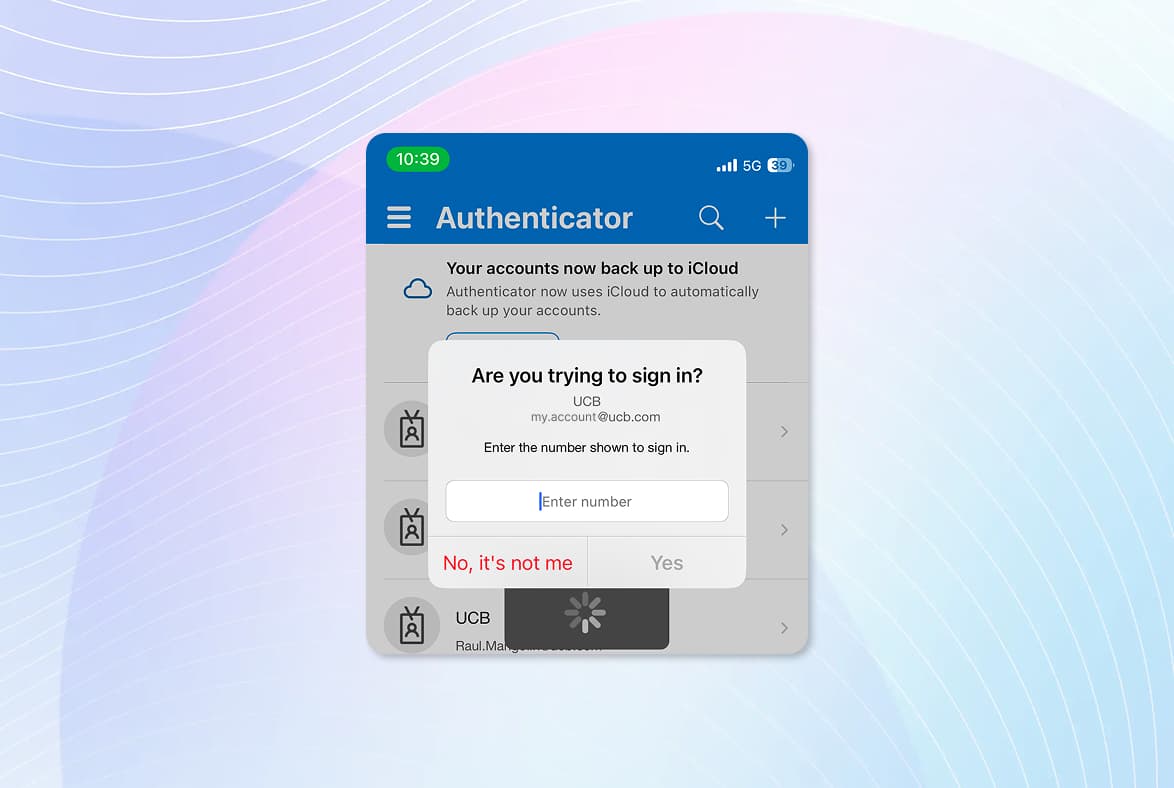
Take note of the authentication number that is displayed on the screen and then tap the popup banner at the top of the screen to open the Authenticator App. If the banner disappears, swipe up to switch back to the Authenticator App.
Step 5
Confirm your sign in attempt by entering the challenge number from the previous screen then tap Yes. After taping Yes, swipe up to switch back to the Safari Browser to set your initial password.
Step 6
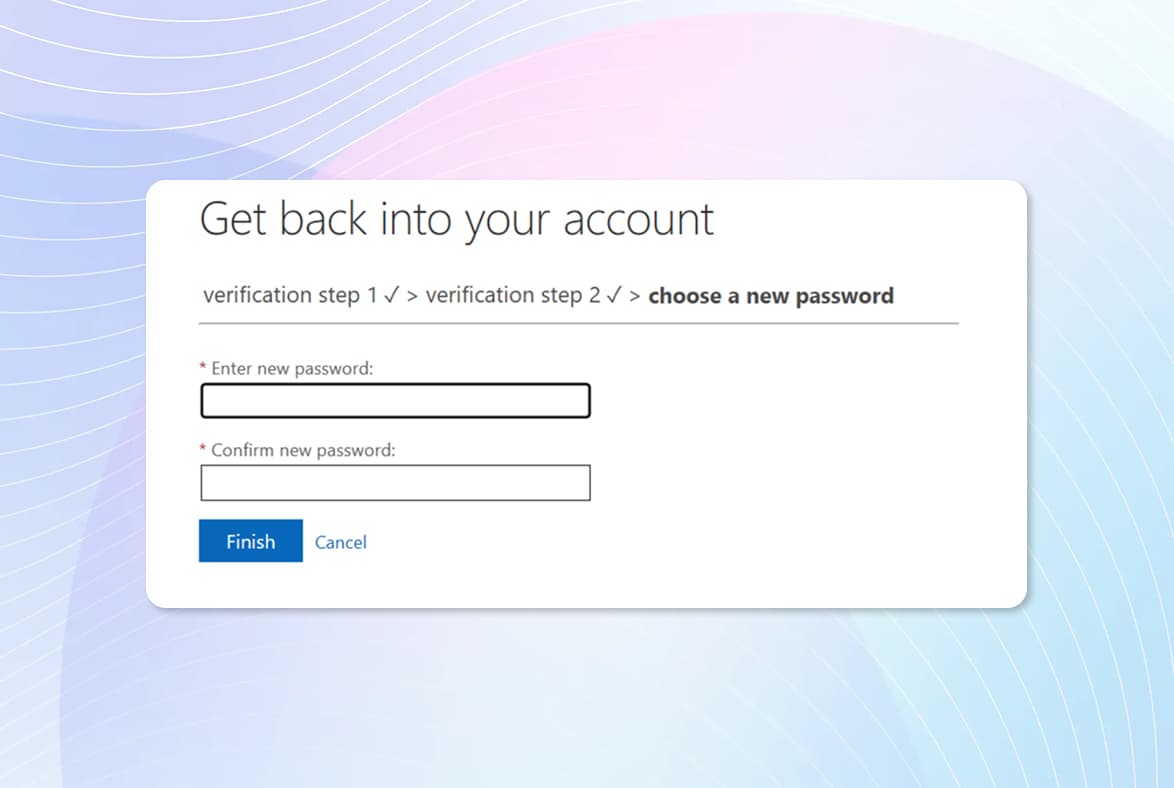
Create a new password and confirm it.
Password Requirements
Minimum length: At least 10 characters
Character complexity:
At least 1 uppercase letter (A–Z)
At least 1 lowercase letter (a–z)
At least 1 number (0–9)
At least 1 special character (e.g., ! @ # $ % ^ & *)
Easily guessable passwords will be rejected (for example: “Password!123”)