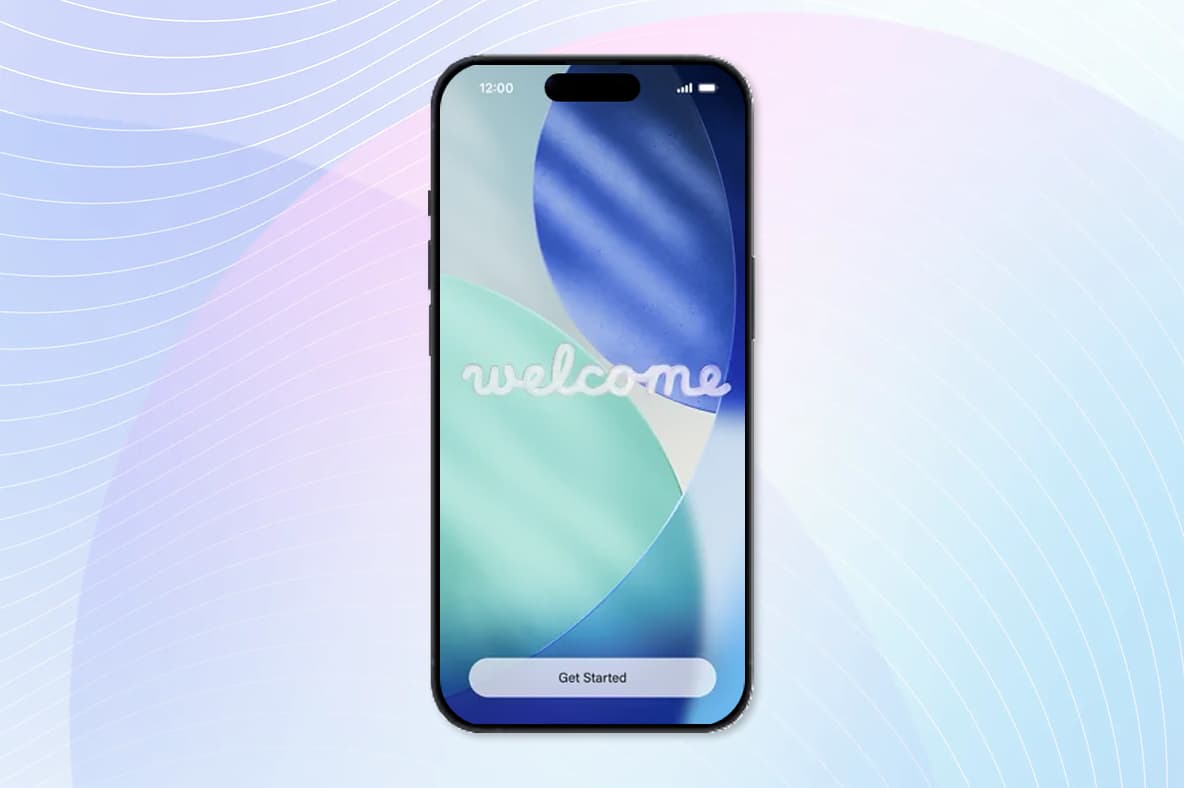
Step 1
Step 1
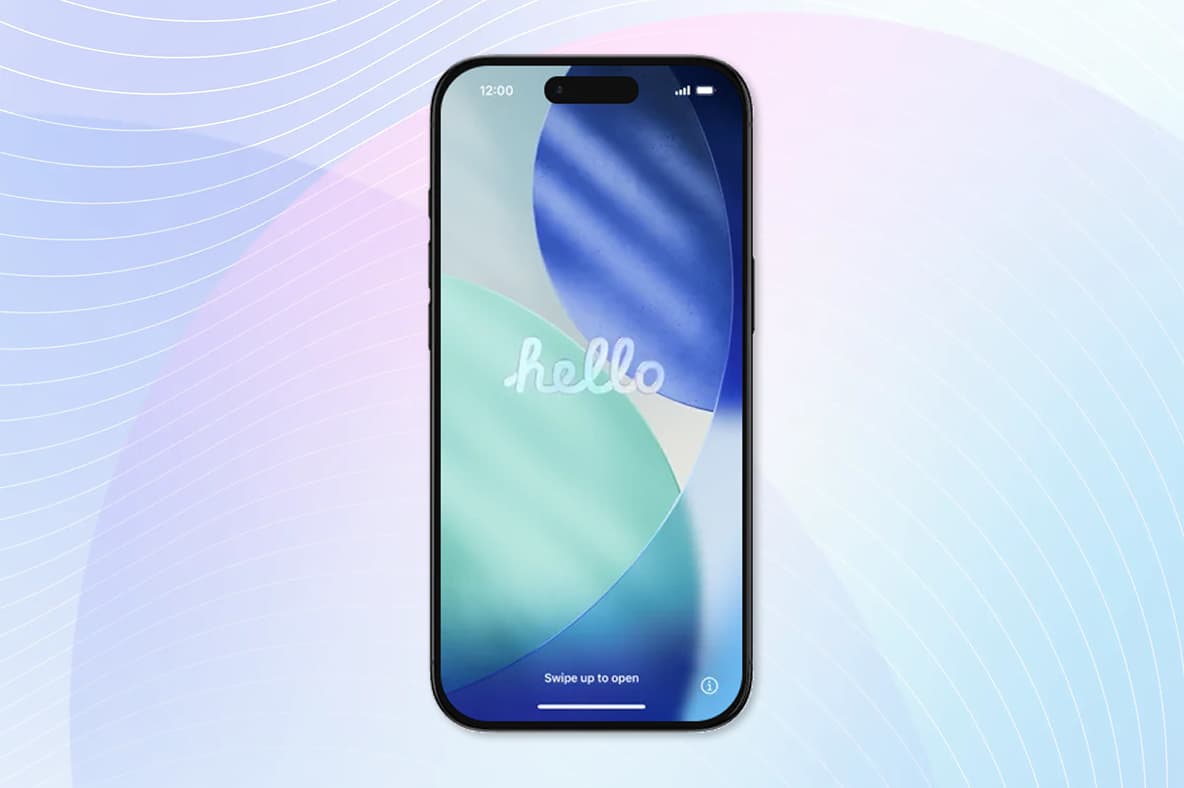
Press the Home button on your device or swipe up to start.
FAQ
On this page, you will find tutorials on how to enrol on your mobile device and how to connect to Wi-Fi.
How to enroll
Before you begin, watch the video explaining all the steps to enroll your device.
Step 1
Press the Home button on your device or swipe up to start.
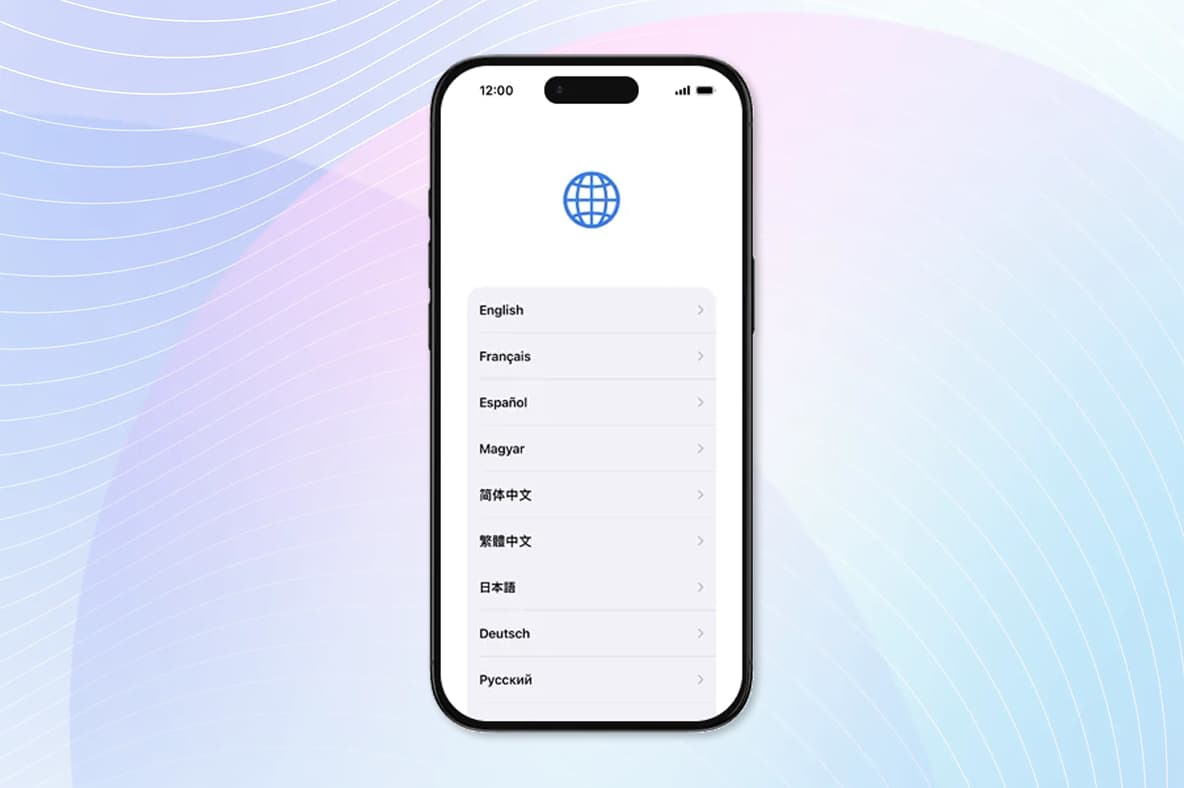
Step 2
Select your preferred language.
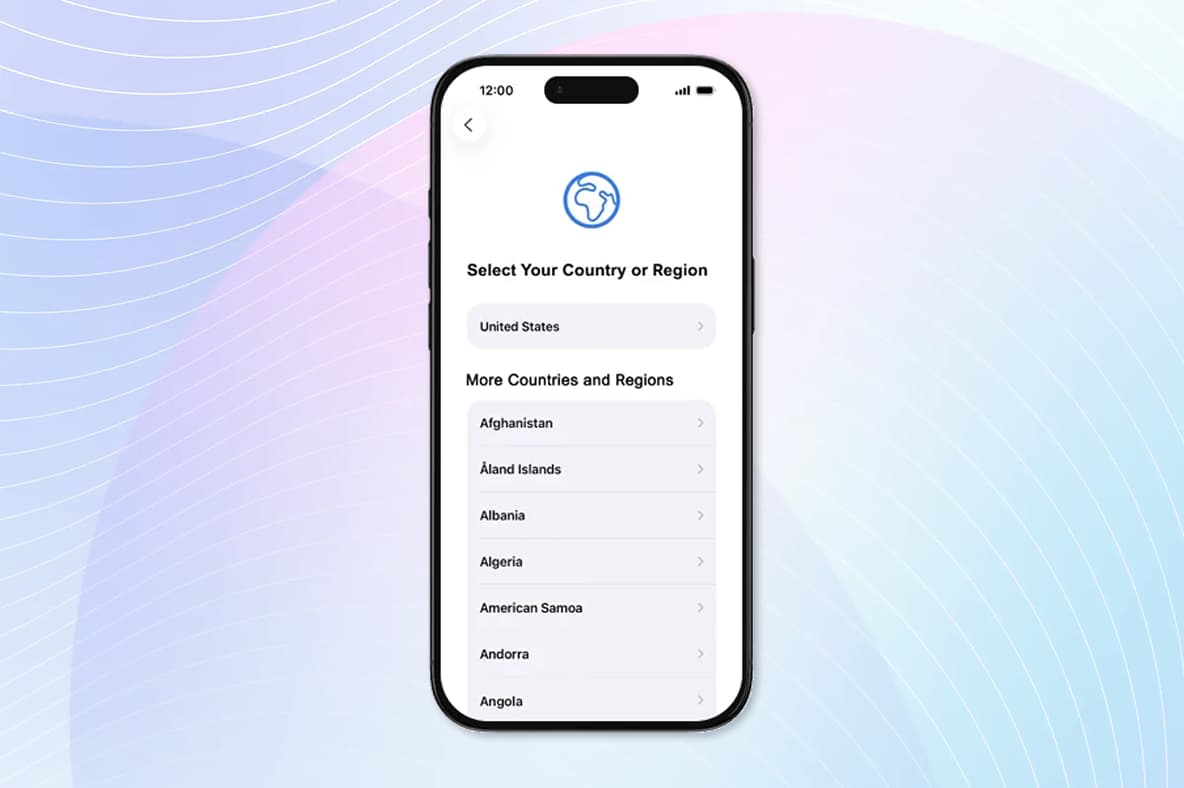
Step 3
Select your preferred country and region.
Step 4
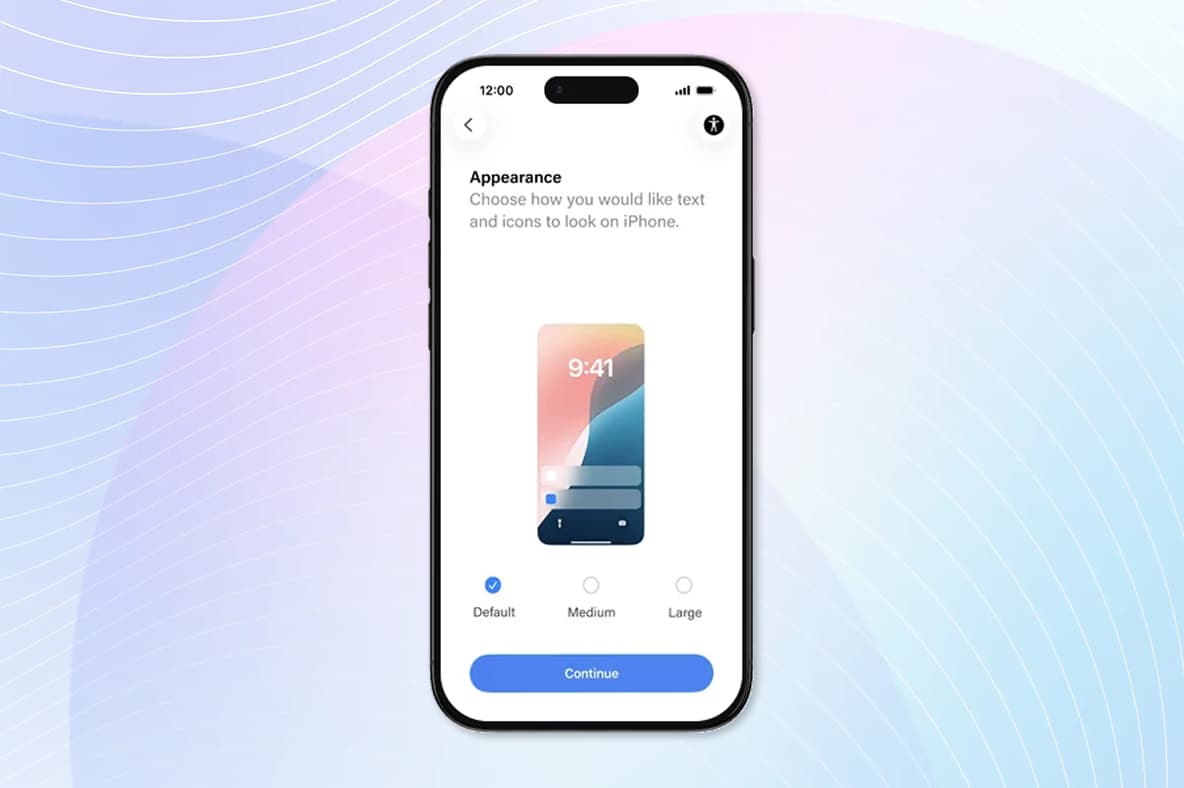
Select your default appearance and tap Continue.
Step 5
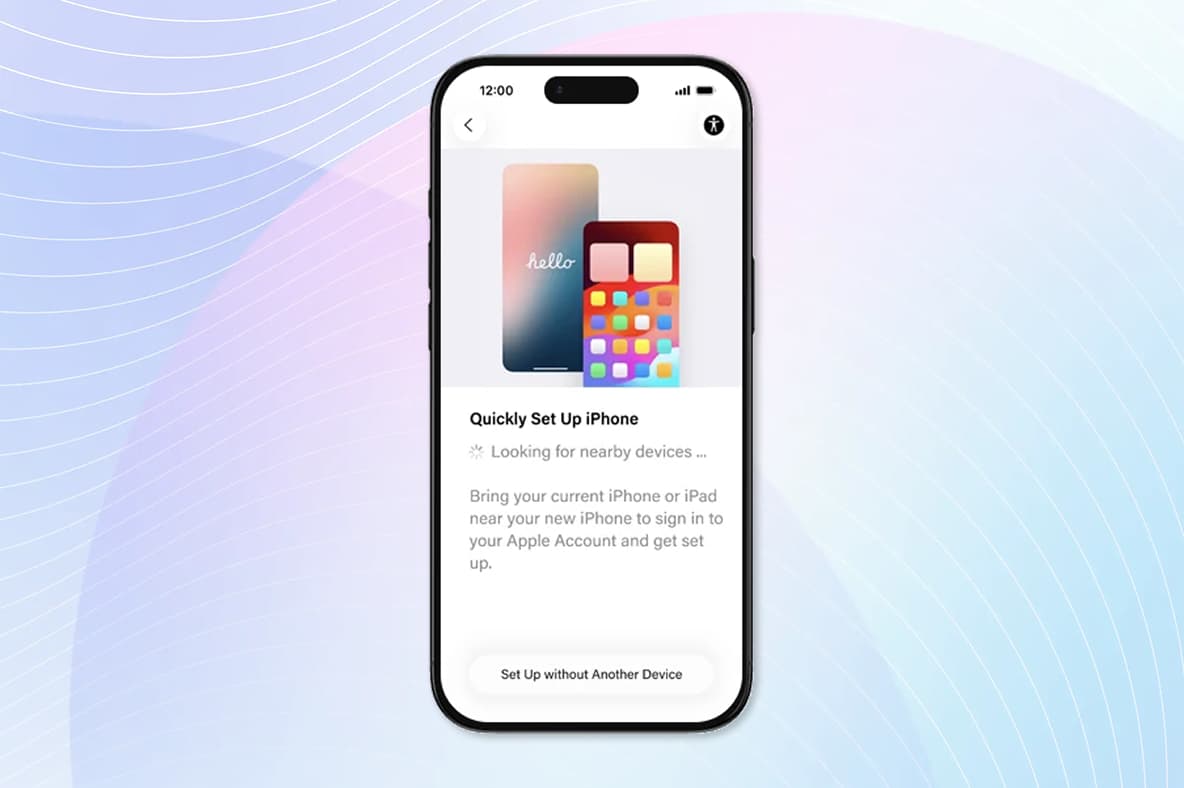
Tap “Set Up without Another Device”
Step 1
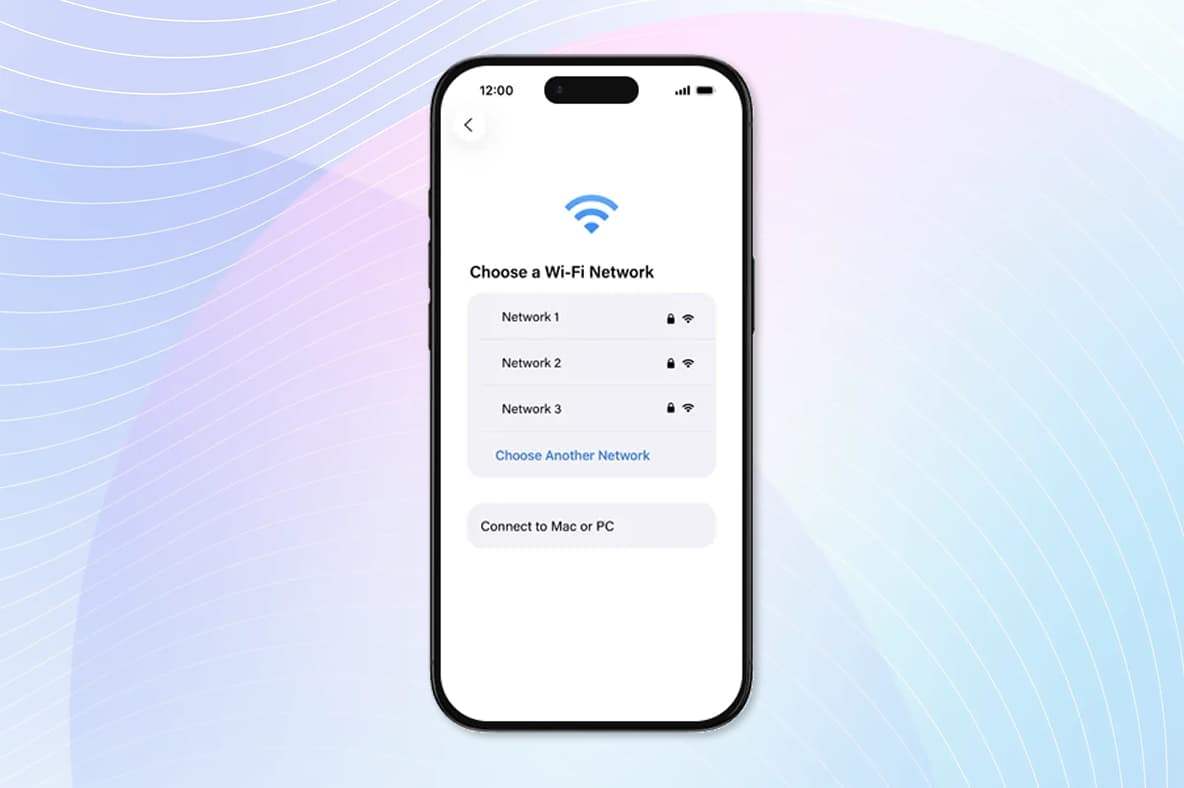
Select U-Visitor from the list of available networks.
If you are a field based or remote user connecting from your home office or a remote location, select any known available wireless network with access to the internet.
Enter the Wi-Fi password if necessary, connect and skip to Step 5.
Step 2
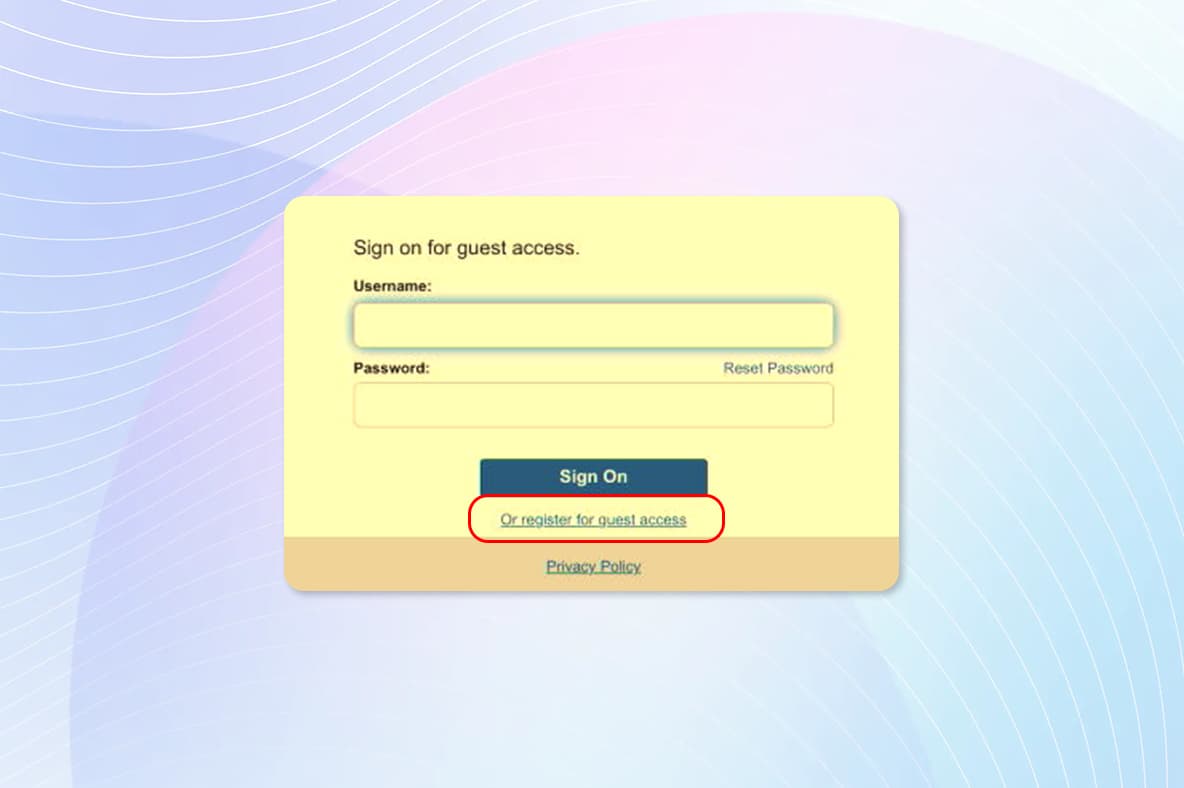
At the sign-on screen, tap to register for guest access.
Step 3
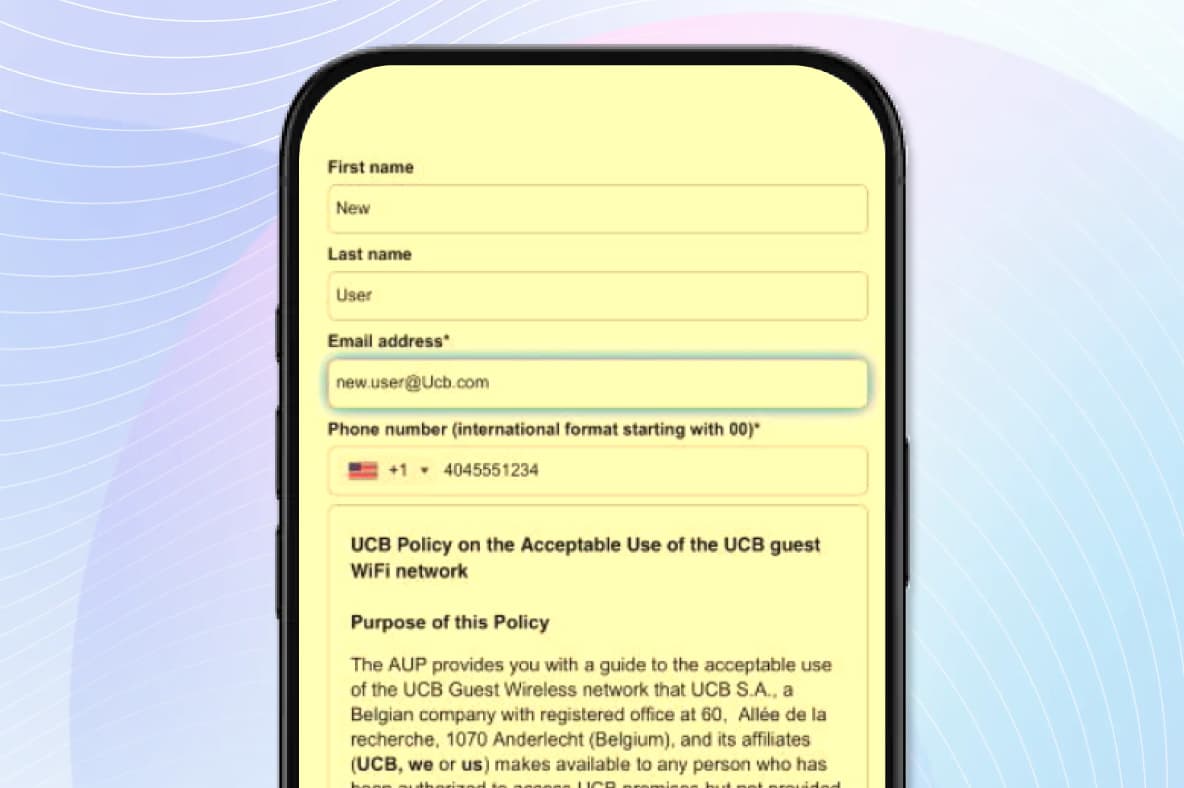
Complete the guest registration process to receive a temporary password to access UCB Wi-Fi.
NOTE: Be sure to use a personal email address where you have access to receive your temp password.
Step 4
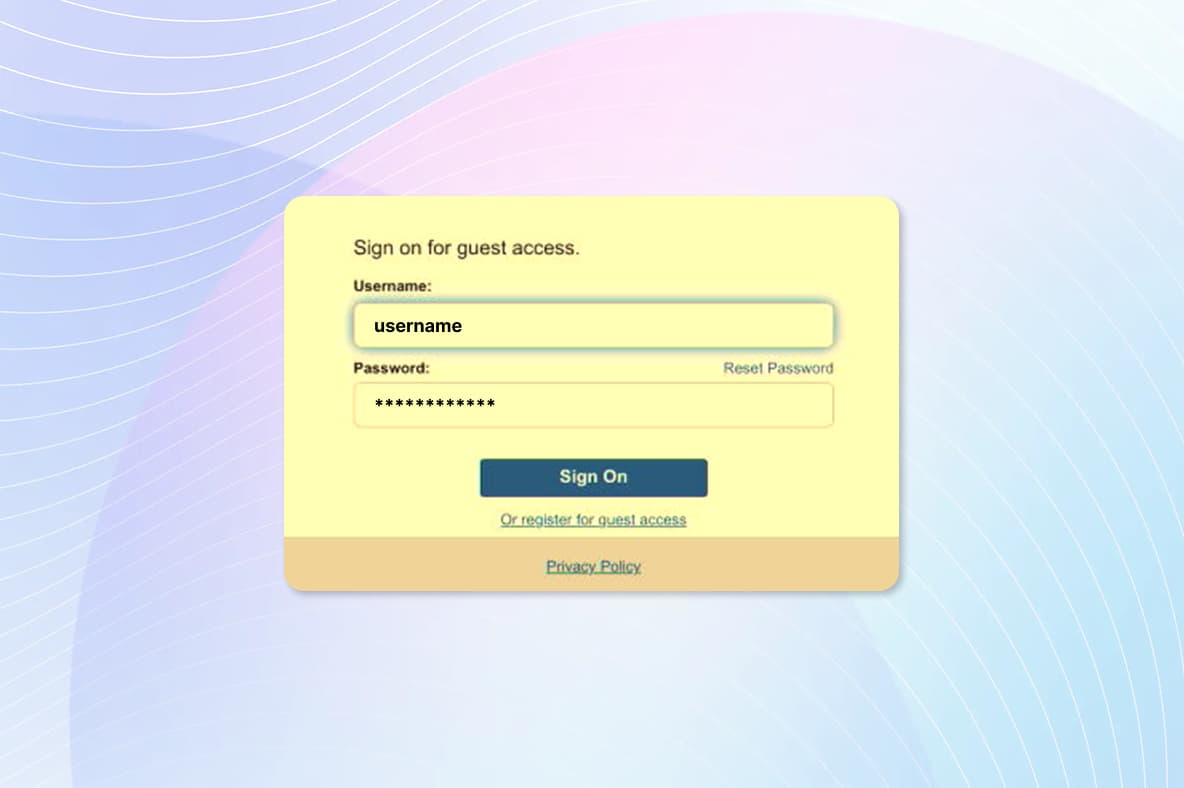
Following the registration process, check your personal email account or text and enter the temp password to log on to the U-Visitor Wi-Fi.
Step 5
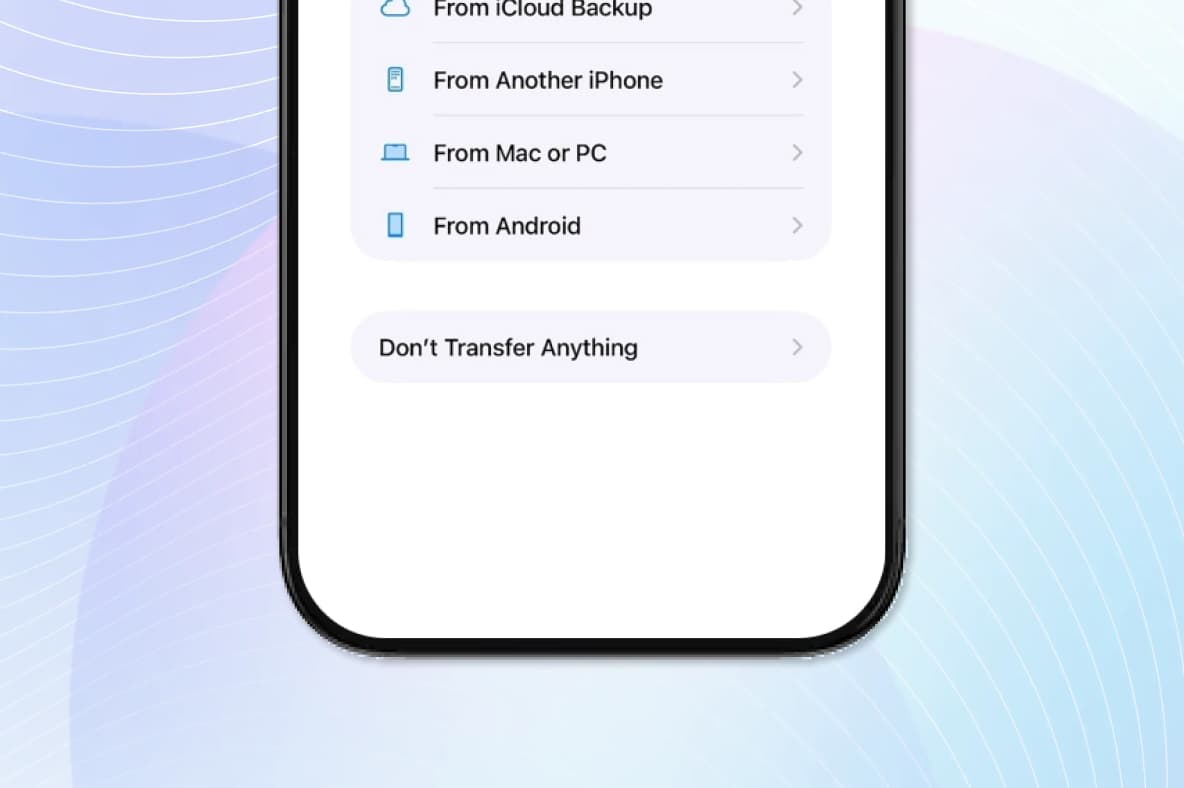
Tap “Don’t Transfer Anything”
If you do not have a Temporary Access Pass (TAP), please contact the MyIT Service Desk or local support team for assistance.
Your TAP is only valid for two hours from the time it was issued. If it's been more than two hours since you received your TAP, you will have to contact the MyIT Service Desk to receive a new one.
Step 6
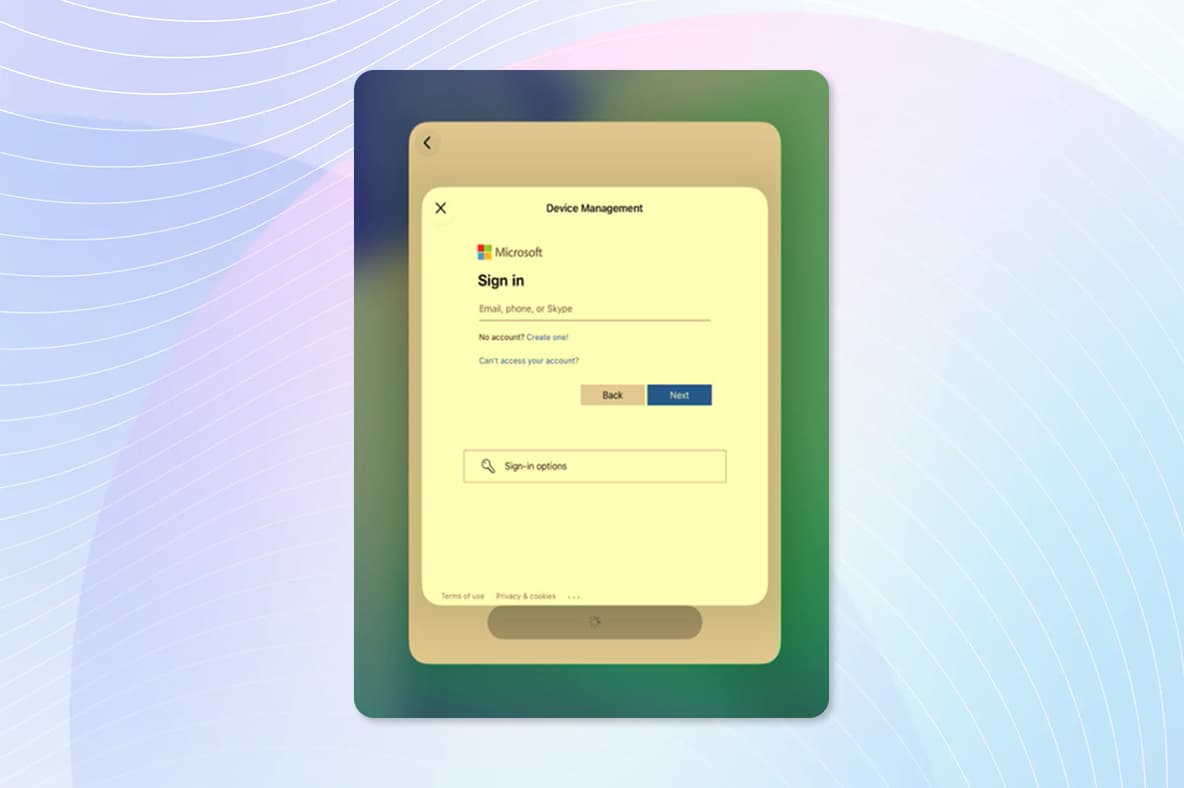
Enter your UCB Email address to authenticate
(Firstname.Lastname@ucb.com)
Step 7
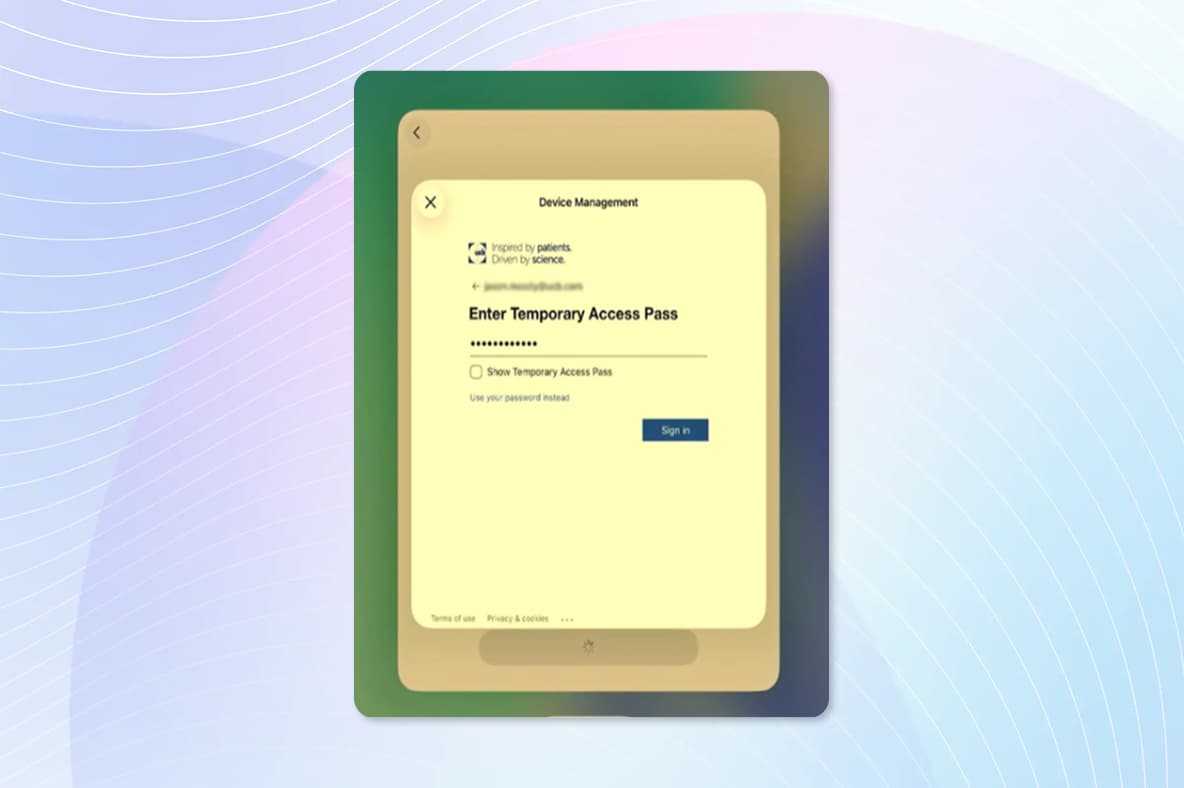
Enter your provided Temporary Access Pass (TAP) and Sign in.
Step 8
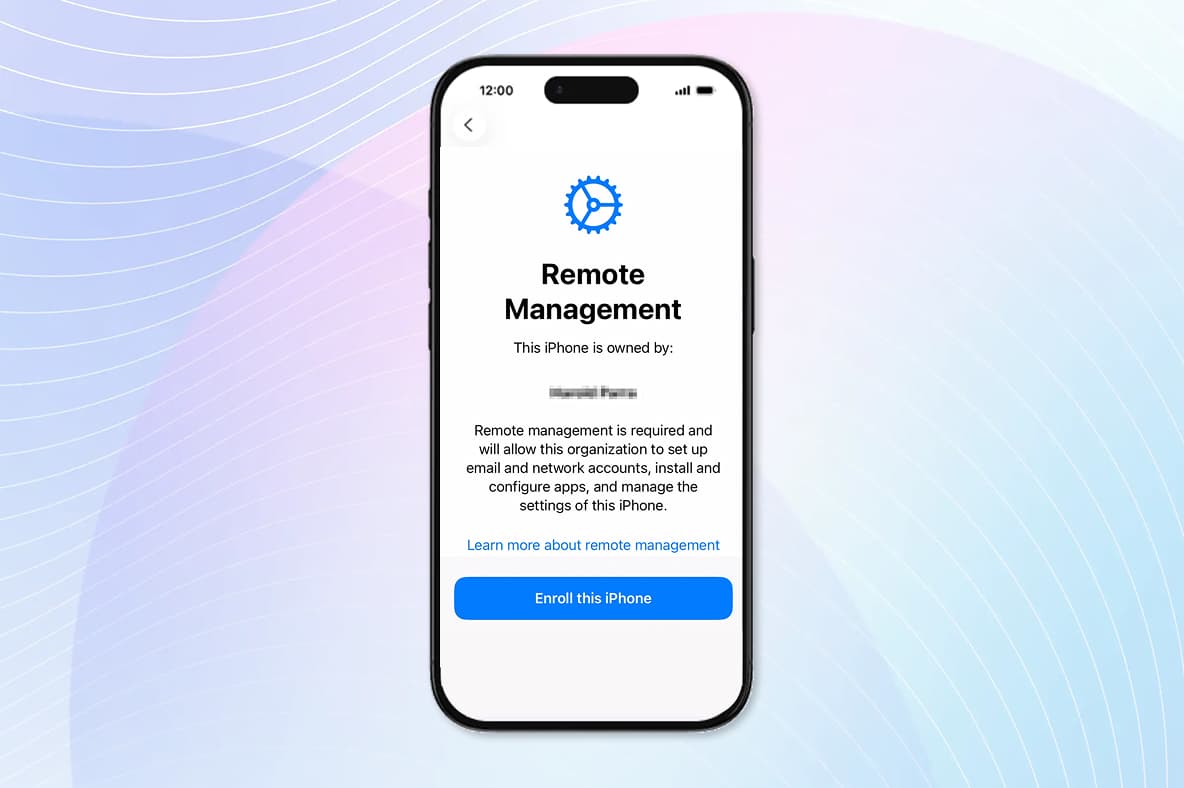
Your device will begin the enrollment process.
Step 9
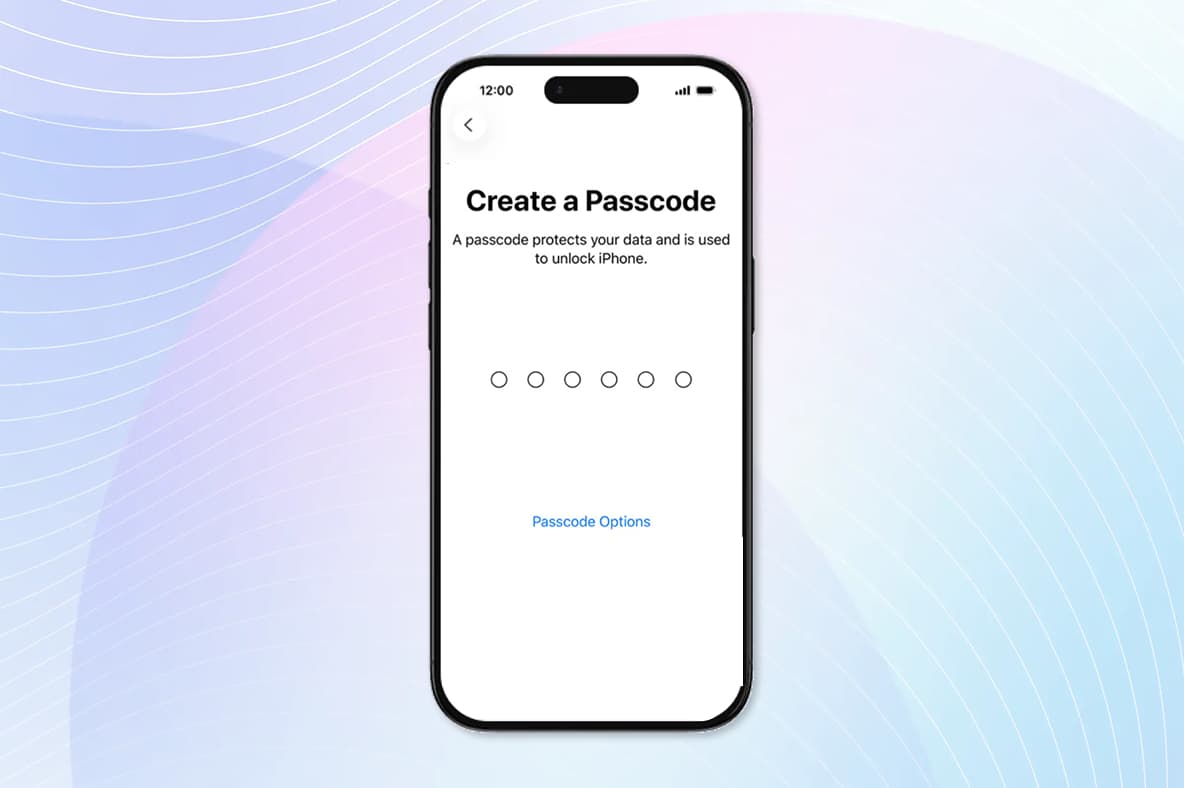
Tap to create a 6-digit numerical password and confirm
Step 10
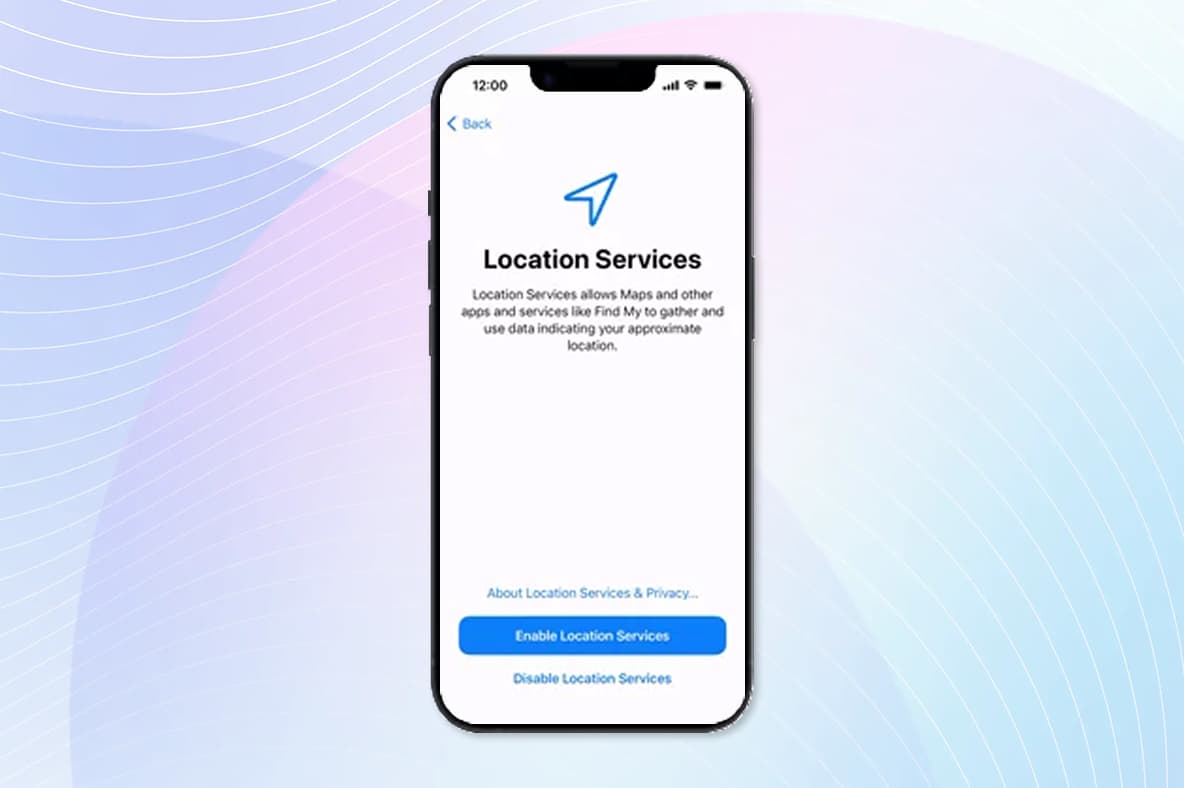
Tap to turn on location services.
Step 11
Tap to select your preferred multitasking option and continue.
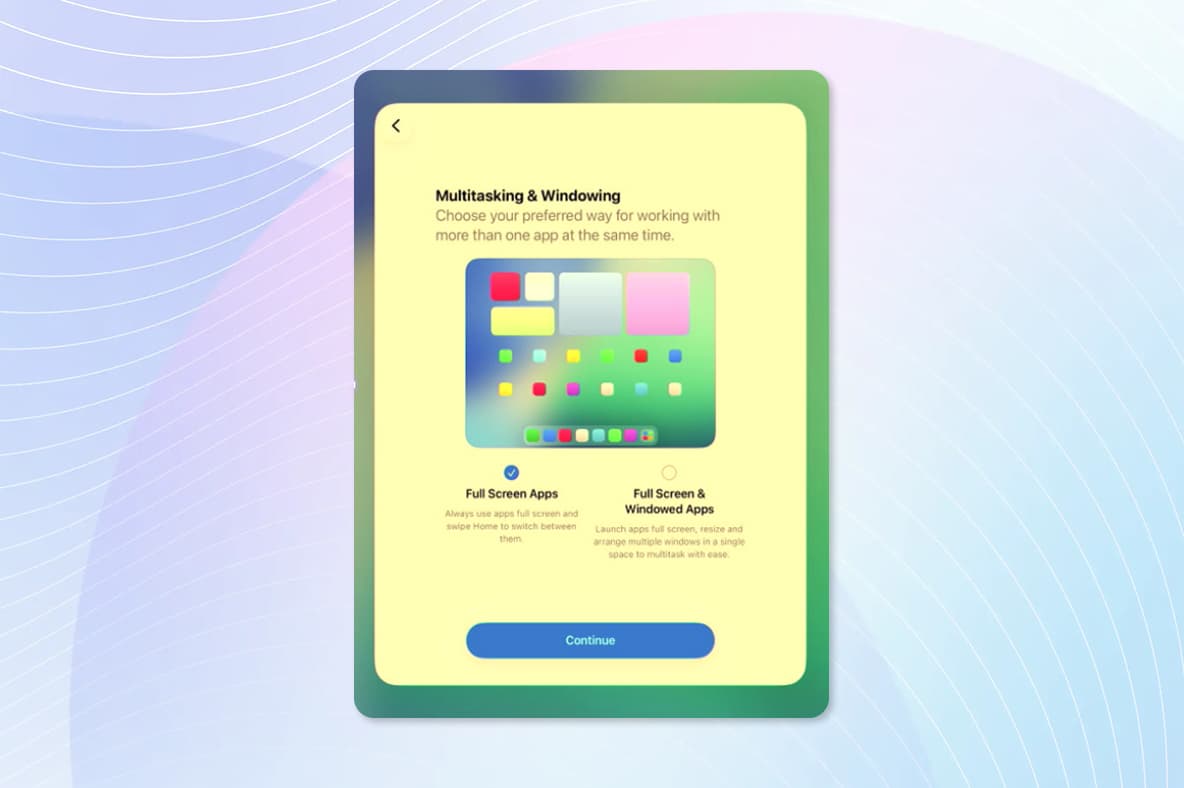
Step 12
Tap “get started” to complete the device enrollment process.